
Submissions
Submissions is every solution submitted anywhere in your space — from a problem page, from the practice site, from inside a contest — in one list, newest first. It's where you find a particular attempt, watch testing as it happens, and read why a program failed.
The section is shown only if you have permission both to read problems and to run testing. If it isn't in your sidebar, see Why a section is missing.
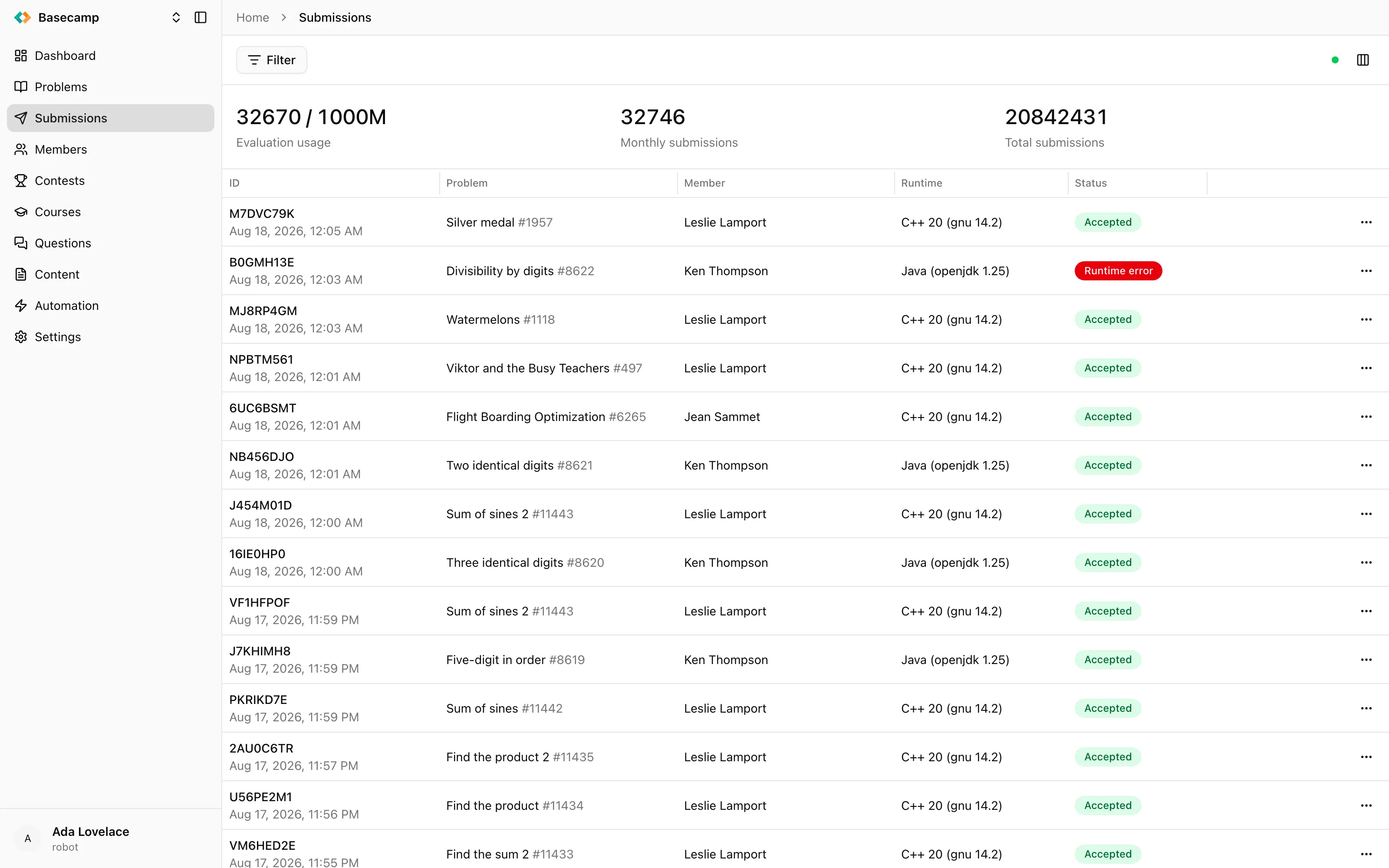
Fig 1. The submission list, with the usage counters above it and the status column on the right.
How this differs from a contest's Submissions tab
A submission made during a contest appears in both places, and the two lists hold the same submissions. What differs is what each list is about:
Submissions | Contest → Submissions | |
|---|---|---|
Covers | the whole space | one contest |
Names the author as | a member | a participant in that contest |
Names the problem as | problem title and number | contest letter and title |
Deleting and restoring a submission | not offered | offered |
Permission needed to rejudge | problems: write, plus testing | contest: write |
Deleting a submission is a contest tool — it takes the submission out of the scoring without destroying it — so it lives with the contest and not here.
The list
The table streams: new submissions appear and running ones change their status without you reloading the page. It pages by scrolling, columns can be resized, and the column picker decides which ones you see.
ID — the first eight characters of the submission identifier, in upper case, with the submission time underneath. This short form is what identifies a submission everywhere in the console, so it's the thing to quote in a support thread.
Problem — the problem's title and number, linking to the problem.
Member — avatar and display name, linking to the member.
Runtime — the language and version the solution was submitted in. Which languages members may use is set in Programming languages.
Status — the status badge, replaced by the verdict badge once testing completes. Both sets of values are listed in Statuses and verdicts.
You can filter by ID (an exact identifier), Problem, Member, Runtime, Status, Verdict, and by Score with a numeric comparison. Filters live in the page's address, so a filtered list is a link you can send to a colleague.
Three counters sit above the table: Evaluation usage, the evaluations consumed in the current quota period against your subscription's allowance; Monthly submissions, made in the current period; and Total submissions, ever made in the space. A rejudge consumes an evaluation, so the usage counter runs ahead of the submission counters — see Quotas and limits.
Clicking anywhere on a row opens the submission. The row also offers Rejudge, described in Rejudge submissions.
The submission screen
A submission opens on a screen titled with its short identifier, with a byline underneath naming the member, the problem, the runtime and the submission time, each linking to its object. Rejudge and Refresh sit at the top; the result also updates on its own while testing runs.
Result
The outcome as an icon and in words — the status, or the verdict once the status is Complete — and, where they apply, the score out of the maximum, the time used against the time limit, and the peak memory used.
Those figures are usage, not limits. The time and memory limits belong to the problem and are shown and edited in Problems → problem → Testing.
When the evaluation ended in an error, a compilation error above all, the compiler or runtime output appears as a snippet directly under the result on a red background.
Test breakdown
Below the result comes one collapsible section per testset. Each section gives the testset index and its status or verdict, the score earned out of the testset's maximum where the testset is scored, its CPU time, wall time and peak memory, and a strip of coloured squares — one per test — as an at-a-glance map of the run.
Expanding a section lists the tests individually, each with its own status, verdict and usage figures. A problem with a single testset opens expanded.
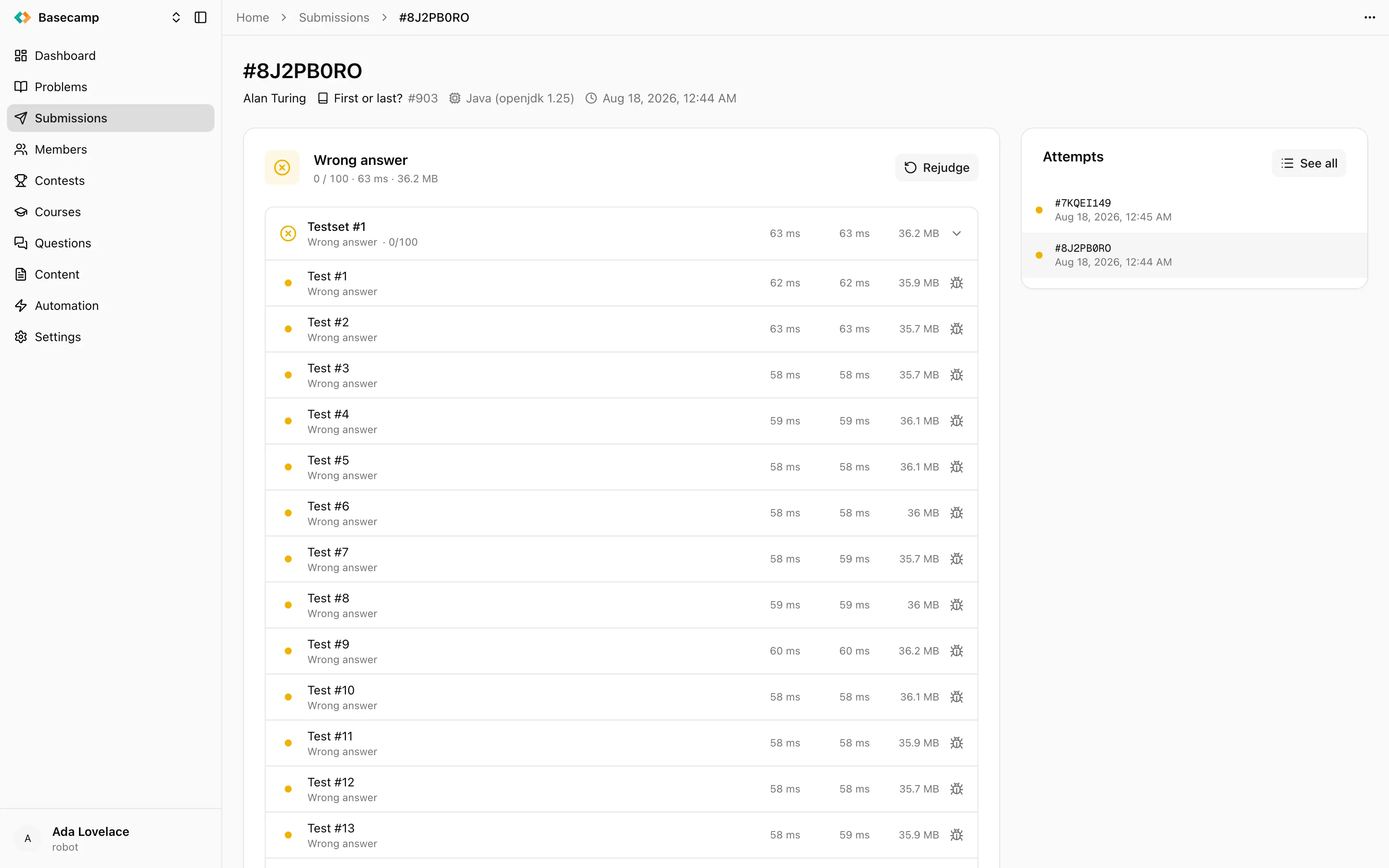
Fig 2. A submission's result summary and its per-testset breakdown, one testset expanded into individual tests.
How much of this the participant sees is decided by the testset's feedback policy — every test individually, or, with ICPC-style feedback, only the first test that was not accepted. The console shows you the full breakdown whatever the policy says. See Testsets and scoring and What participants see while solving.
Debug info
A test row offers Debug info when the evaluation kept per-test material. The dialog shows the test Input, the solution's Output and the Expected answer as snippets, then Program, Checker and Interactor sections, each with the exit code, the termination signal, CPU time and peak memory, the process's standard error, and links to its standard input and output.
This material is for organizers only. The solution's standard error, the checker's log and the interactor's log are visible here and nowhere else — participants never see them, on any page, whatever the feedback policy is set to. The same goes for the per-test input, output and expected answer. Never quote any of it back to a participant, in a question thread or anywhere else: it gives away the tests.
Source code
The submitted source, syntax-highlighted for the submission's language. It's absent for submission types that carry no source, and for anyone not allowed to see it.
A submission without source shows what was submitted instead. A quiz submission lists each question with the options picked or the text typed. An output-only submission offers the uploaded file on the test it answers.
Attempts
A sidebar lists the last 10 submissions by the same member on the same problem, each with a status dot, its short identifier and its time, with the one you're looking at highlighted. See all opens the submission list filtered to that member and that problem. The sidebar is hidden when there's only one attempt.
 Stand with Ukraine