
Programming languages available to members
The Programming languages setting on Settings → General → Runtime is the list of languages and compilers members can choose from when they solve a problem. By default every language the platform supports is offered; restricting the list narrows what appears in the language picker on the public site.
You need permission to configure the space (Space → Configure) to open the General tab — see Access management.
Restrict the languages
Open Settings → General.
On the Runtime card, open Programming languages.
Clear Allow all available languages.
Tick the languages you want to offer.
Commit.
The field then reads the number of languages you chose instead of All.
Leaving Allow all available languages ticked means new languages become available as the platform adds them, with no action from you. Clearing it freezes the list at exactly what you ticked.
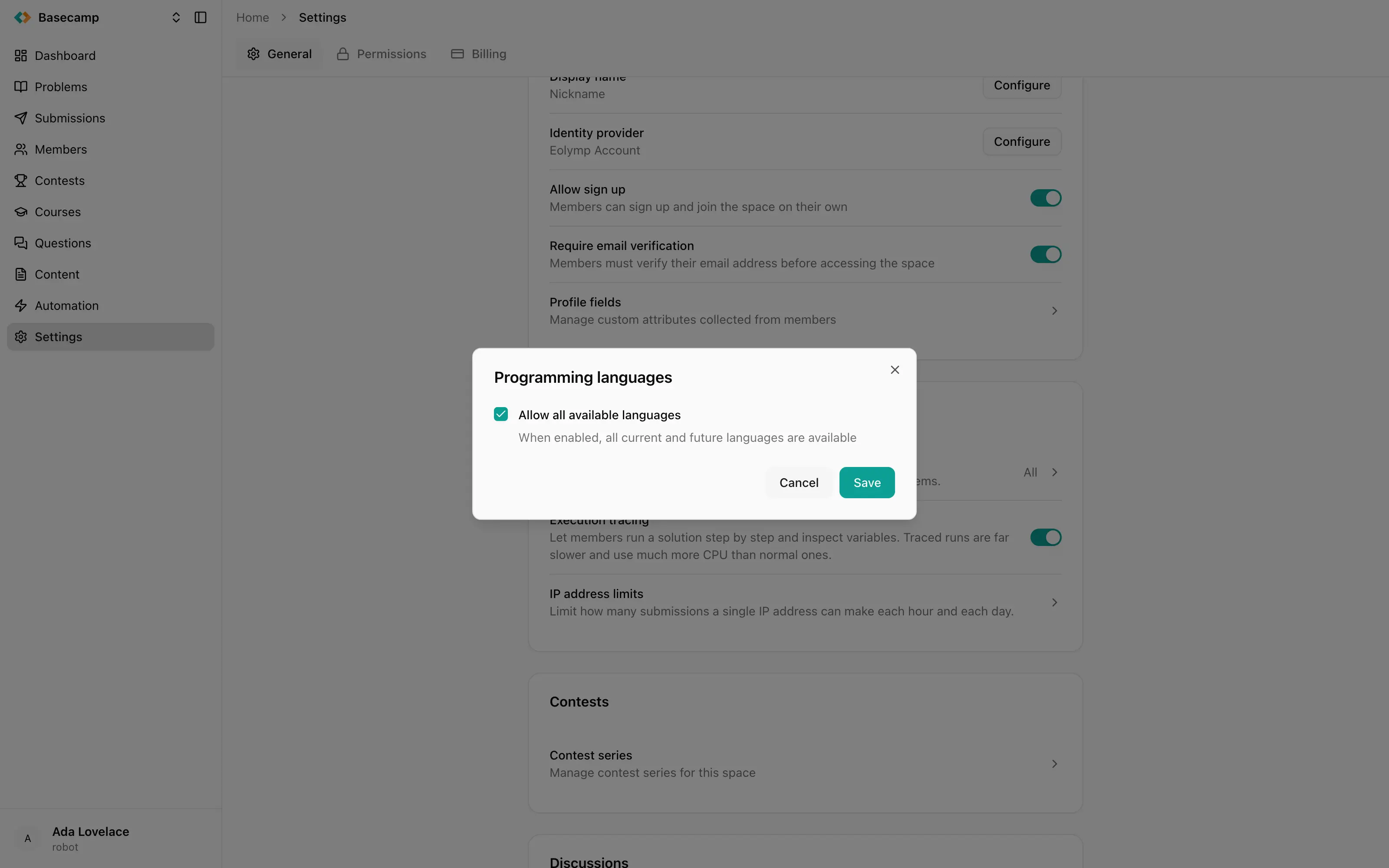
Fig 1. Clearing Allow all available languages reveals the picker and the deprecated-runtimes checkbox.
Deprecated runtimes
The picker also has Show deprecated languages and runtime. Ticking it adds retired compiler versions to the list so you can select them. This matters when you are reproducing an old contest, or when a set of reference solutions was written against a version that is no longer current. Unless you have that kind of reason, leave it off — a retired runtime is not going to be updated again.
What contests can do with this list
This setting is the space-wide default. An individual contest can narrow it further in its own settings, so a contest can offer fewer languages than the space does. It cannot offer more: a language you have not enabled here is unavailable everywhere in the space. See Contests.
Execution tracing
Execution tracing on the same card lets members run a solution step by step and inspect variables as it goes. It is off unless you turn it on.
Traced runs are far slower than normal ones and use much more CPU, which is the reason it is a choice rather than a permanent feature. It suits a training space or a course, where the point is for a student to understand why their program does what it does; in a competition it mostly costs you capacity.
Per-IP submission limits
IP address limits caps how many submissions one IP address may make, with two numbers: Hourly limit and Daily limit. 0 means unlimited, and both are 0 unless you set them.
Only the field you actually change is saved, so setting the hourly limit never quietly resets the daily one.
The count is per source IP address, not per member. A computer lab, a school or anywhere else behind a single NAT gateway shares one budget between everyone sitting there, so a limit that looks generous for one person can stop a whole room. Set it with the largest group you expect in mind, or leave it at 0 for on-site events and use it only where you are worried about automated submissions from the open internet.
 Stand with Ukraine