
Problems
The Problems section is where the problems your space owns are written and maintained. A problem holds its own metadata — type, number, visibility, difficulty and topics — one statement per language, an optional editorial per language, attachments, testsets and tests, a checker and optionally an interactor and a validator, generator scripts, code templates, reference solutions, issues and a change history.
Problems are edited in the console. Participants see the published result on your space's public site, at /problems/<number>.
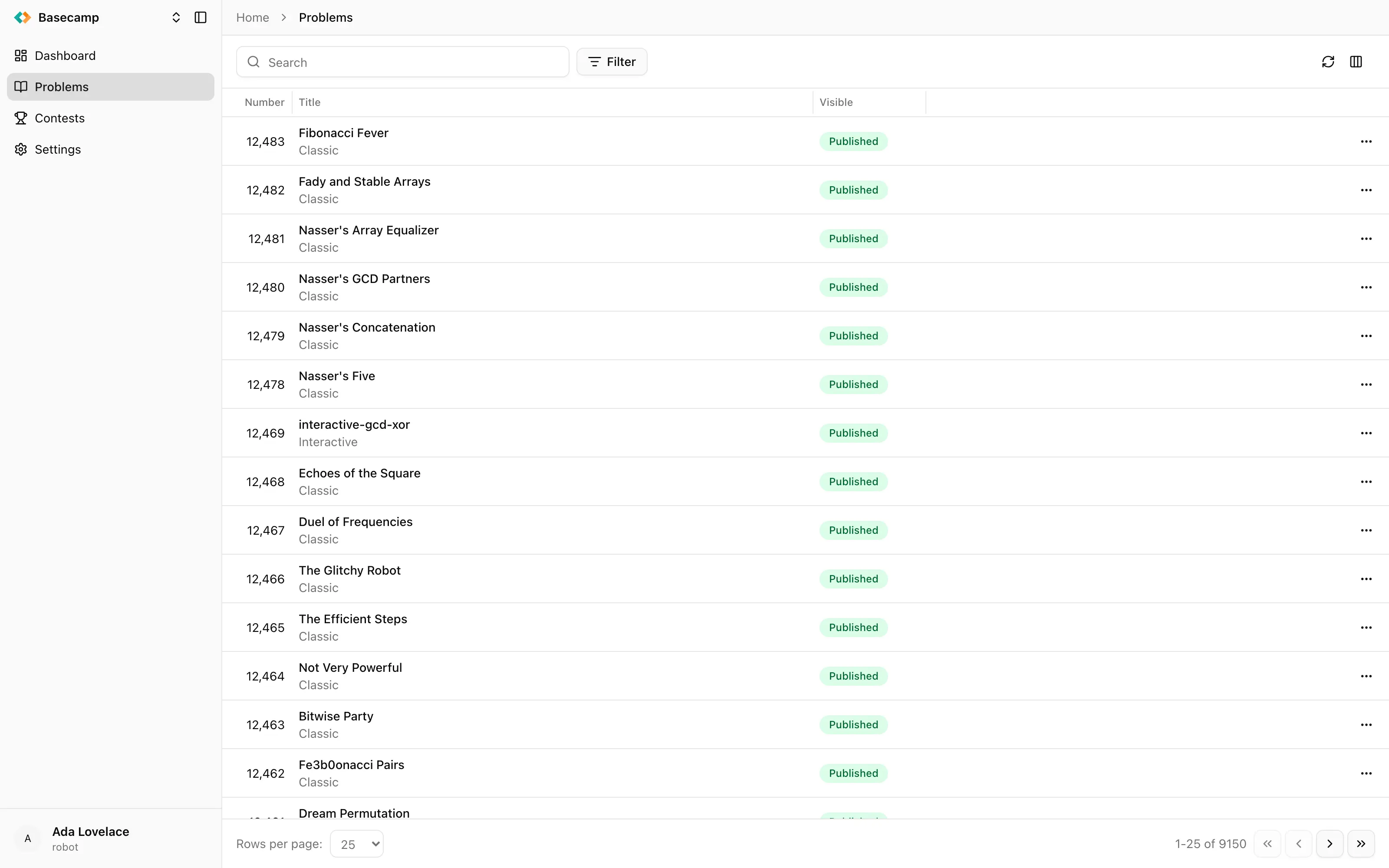
Fig 1. The problems list, with the search box and filters.
The problems list
Every problem in the space, as a paginated table you can search, filter, sort and resize. Free-text search matches across the whole space, and the column set is yours to choose — three of the columns are hidden until you turn them on.
Column | Content |
|---|---|
Number | Index of the problem in the public catalog, and the last part of its public URL. |
Title | Statement title in your interface language, with the problem type underneath. |
Visible | Published or Unpublished. |
Origin | Where the problem was imported from, shortened — |
Source | The contest or olympiad the problem was originally published at, as recorded on the statement. Hidden by default. |
Author | Problem author name from the statement. Hidden by default. |
You can filter by Number (a numeric comparison), Difficulty, Visible, and Topic from the shared topic taxonomy. Difficulty and topics are set on the problem itself, in the Classification card of its Settings tab.
Above the table, New problem creates an empty problem of the type you pick, and the import options create one from elsewhere: Import from a space, Import from Basecamp, Import from Polygon and Import from file.
Each row has its own menu: View (published problems only, opens the problem on the public site), Publish / Unpublish, Synchronize (imported problems only) and Delete. Row actions are evaluated per problem, so a problem you cannot write to shows none of them. Clicking a row opens the problem itself.
The problem workspace
Opening a problem gives you a header — its title and number, plus Open studio, View, Synchronize, Import from file, Export problem, Publish / Unpublish and Delete — and a row of tabs. Automation rules with the Problem action trigger add their own entries to the header's menu.
Which tabs appear depends on the problem type:
Tab | Contents |
|---|---|
Overview | Submission statistics and the latest submissions. |
Statement | Statements per language, the questions of a quiz, the editorial. |
Questions | The questions of a quiz. Quiz problems only. |
Solutions | Code templates and reference solutions. Not on quiz and widget problems. |
Widget | The uploaded page and its checker. Widget problems only. |
Testing | Testing configuration, checker, interactor, validator, stress testing, generators, testsets and tests. Not on quiz and widget problems. |
Discussion | The public discussion thread attached to the problem. |
Activity | Background tasks that touched this problem. |
Changelog | Version-by-version history of edits. |
Issues | Issue tracker for the problem. |
Settings | Whether the problem is public, its number, and its classification. |
The Overview tab
Three widgets over a fixed 30-day window: Submissions by Day, a daily count; Submissions by Verdict, a pie chart in which the failing verdicts are tinted in distinct shades so Time limit exceeded, Idleness limit exceeded, Memory overflow and Runtime error stay apart; and Submissions, the ten most recent submissions with id, member, runtime and status. See all opens the Submissions section filtered to this problem, and clicking a row opens that submission.
While a problem import is running, an alert sits above the widgets, linking to the Activity tab.
Difficulty and topics
The Classification card on the Settings tab shows the problem's current difficulty and opens a dialog with two fields. Difficulty runs Very easy, Easy, Medium, Hard, Very hard, and can be cleared to leave it unset. Topics is a multi-select over the shared topic taxonomy. Both are saved together.
They feed the difficulty and topic filters in the problems list, and the catalog filters on the public site.
Change history
The Changelog tab lists edits to the problem newest first, grouped by day. Each entry carries a version number, a one-line summary of what changed, the author — an entry whose author no longer exists reads Ghost — and the time. Load more pages further back. A problem with no history reads No changes yet.
Export a problem
Export problem in the workspace header produces a downloadable file holding the whole problem, content included, and starts the download when it is ready. A toast reports progress. Exporting needs only read access to the problem. The file can be brought back with Import from file, into this space or another one; see Import problems.
Using a version number from the Changelog tab, the snapshot can be produced for an earlier revision rather than for the problem as it stands now.
Background work
Imports, test generation, auto-translation and stress tests all run in the background. The problem's Activity tab lists the ones that touched this problem, with their type, status, progress and timing, and offers Download logs on any task that produced a log. The alerts you see elsewhere in the workspace — Problem import is running, Test generation is running, Translation is running — all link here. The space-wide view is Background tasks.
Secret content
Checkers, interactors, validators, generators, code templates, reference solutions and individual tests can be marked secret. This is how an imported problem protects material its author does not want exposed: secret content is never sent to the console, so the editor genuinely cannot show it to you.
In lists, a secret item carries a Secret badge where its runtime or its test input would be. In the Studio a secret part opens as Secret data and cannot be read. Where the console offers Override on a secret item, it opens an empty editor and replaces the stored item with whatever you save; the original is not recoverable through the console afterwards.
Permissions
Action | Permission |
|---|---|
Browsing the problems list, viewing a problem, exporting it | Read problems |
Creating, importing, editing, publishing, synchronising and deleting problems and all their content | Write problems |
Rejudging submissions of a problem | Write problems together with Run testing |
Row-level actions are gated per problem, so someone with access to only part of the catalog sees actions only on the problems they can write to. See Access management for how permissions are granted.
Where to go next
Create a problem — start an empty one.
Import problems — from Polygon, Basecamp, another space, or a file.
Studio — the full-screen editor for a problem's programs and tests.
Problem types — what the type changes about grading and about the console.
Statement and Editorials — what participants read.
Test cases, Testsets and scoring, Generate tests — the data solutions are judged against.
Checkers, Interactors, Validators — the programs that grade and verify.
Test script and Stress testing — tests that follow a script, and counterexamples found automatically.
Publish a problem, What participants see while solving, Issues.
 Stand with Ukraine