
Import Problems from Polygon
Eolymp allows you to easily import problems from polygon.codeforces.com. Follow these simple steps to import Polygon problems into Eolymp.
Prepare the Problem on Polygon
Before starting, ensure the problem is fully prepared in Polygon so Eolymp can access and import it.
Create a Package
To allow Eolymp to retrieve all the required data and tests, you’ll need to generate a package for the problem in Polygon. This package is an archive containing the problem statement, checkers, interactors, and tests.
Here’s how to generate the package:
Open the problem in Polygon and go to the "Packages" tab.
If there is already a package listed for the latest version, it means Polygon has already generated the necessary archive. You can move on to the next step: granting access.
If no package exists for the latest version, click the “Create Package: Standard” link at the top of the screen. This requires full (WRITE) access to the problem.
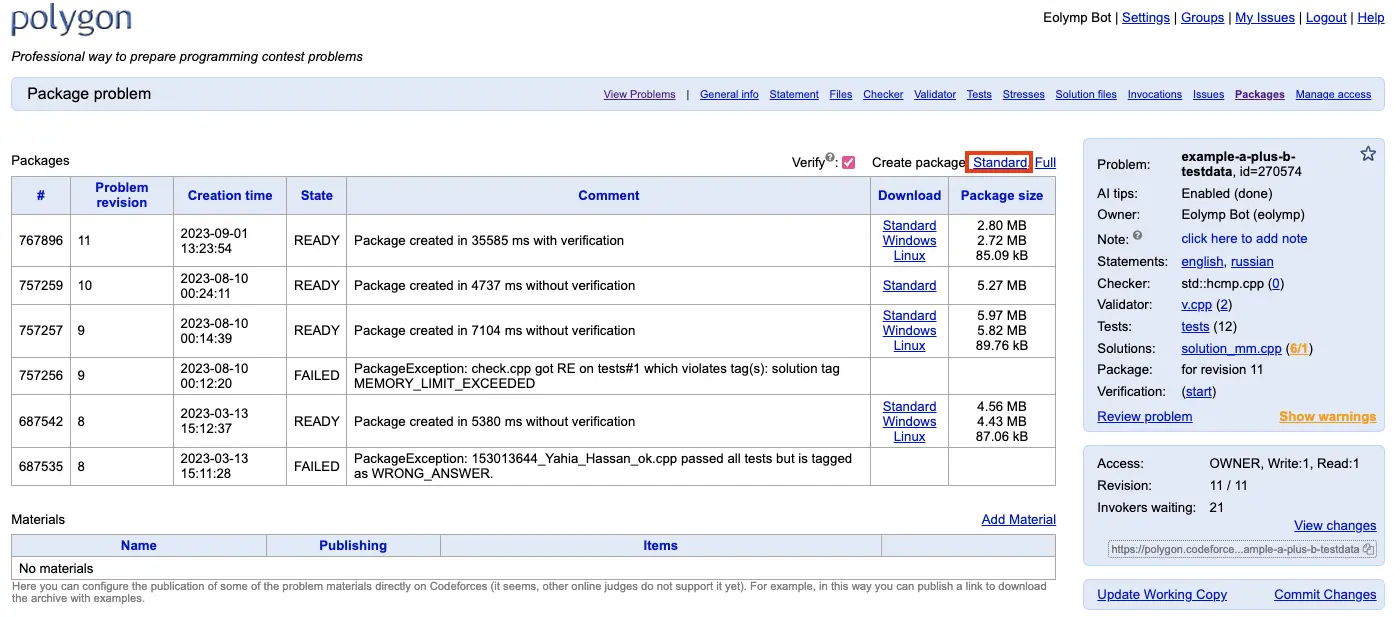
Fig 1. Create package button
Grant Access to Eolymp
To allow Eolymp to download the problem archive, you must grant READ access to the eolymp user.
Go to the "Manage access" page in Polygon.
Add the user
eolympwith READ access.
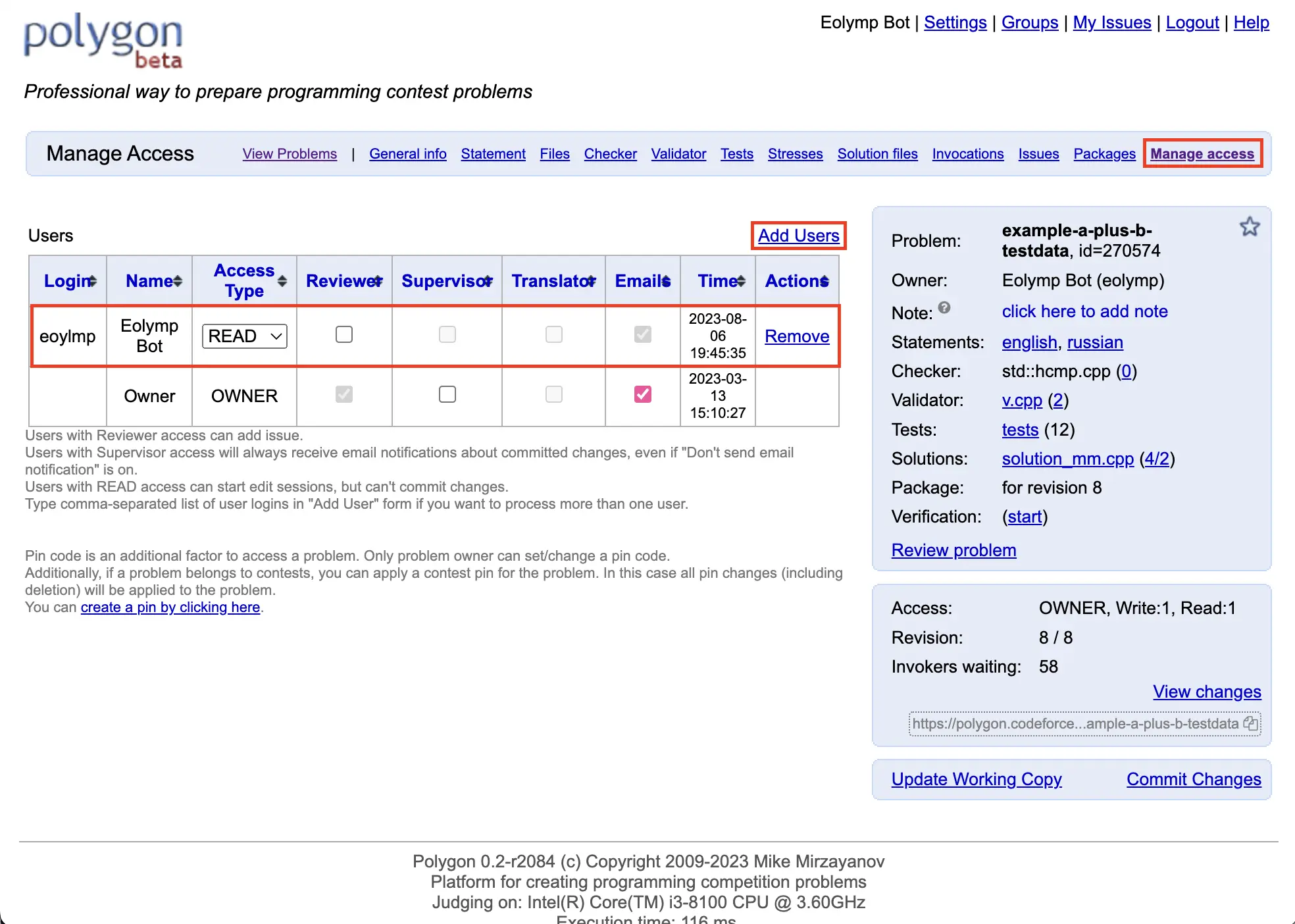
Fig 2. Granting access to eolymp user
Get the Problem Link
To retrieve the problem archive link, navigate to the problem page in Polygon and copy the link from the right side of the interface.
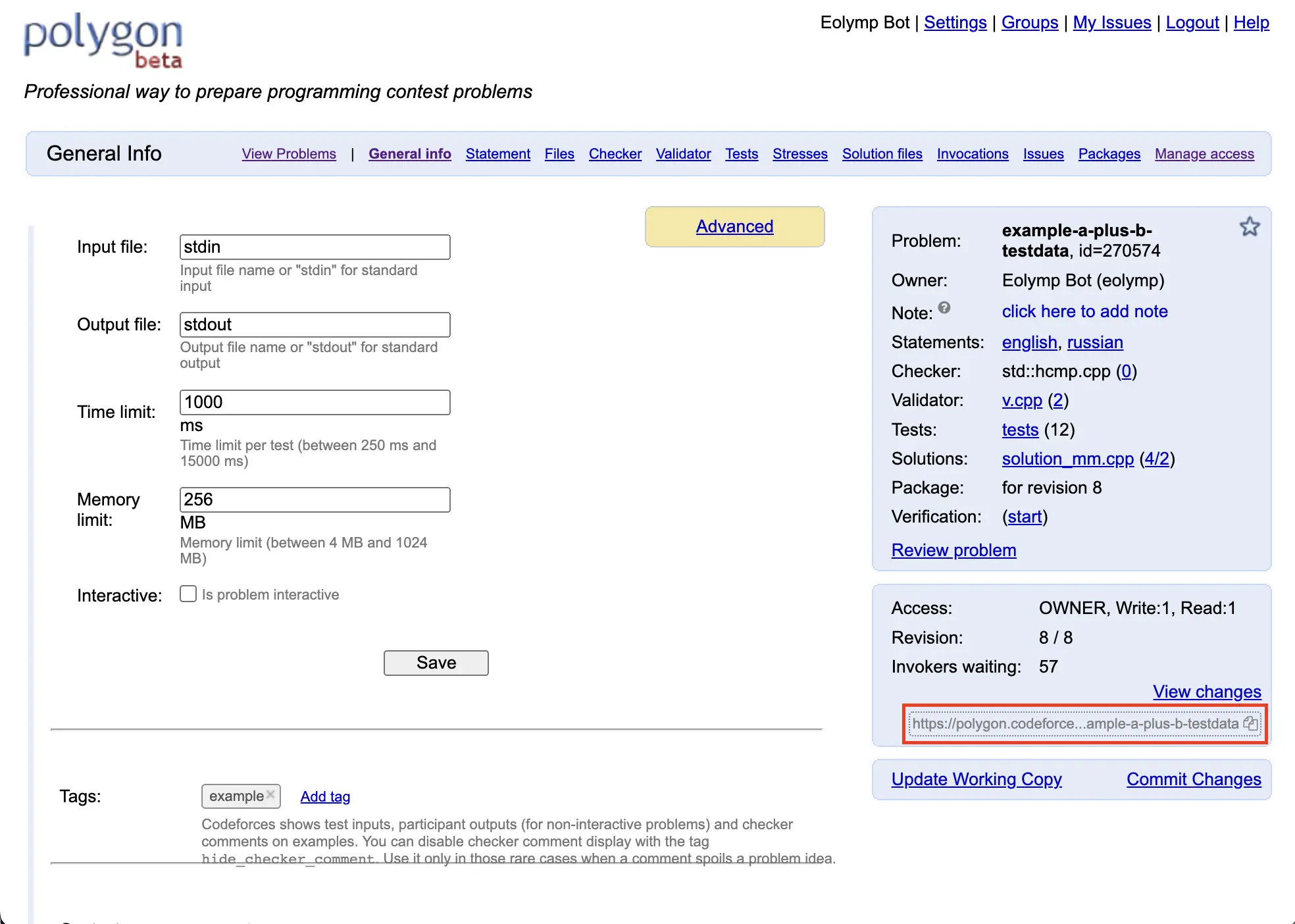
Fig 3. Location of problem link
Import the Problem to Eolymp
Now you can proceed to import the problem into Eolymp.
Open the Eolymp console and log in.
Choose the space where you want to import the problem and go to the "Problems" section.
Click the arrow next to the "Create problem" button to see more options.
Select “Import problem from Polygon.”
Paste the link you copied in the "Problem link" step into the "Link" field.
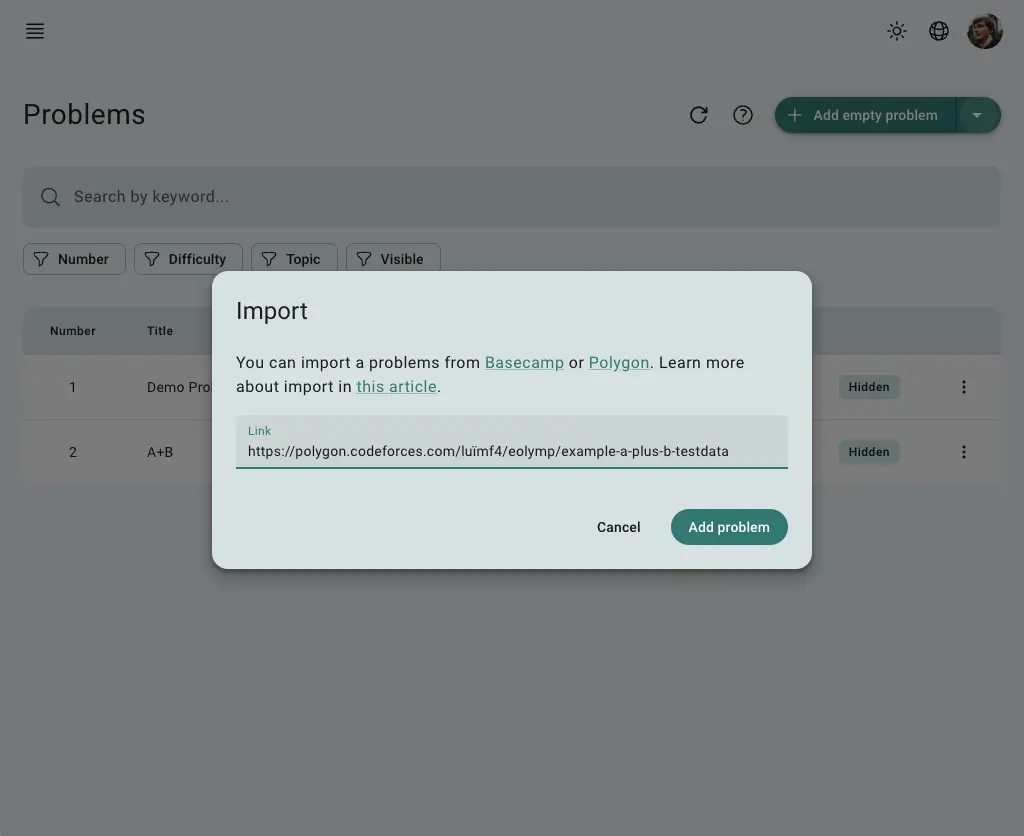
Fig 4. Problem import dialog
Click “Create problem.” Eolymp will create a new, empty problem and start the data import. This process can take anywhere from a few minutes to longer, depending on the amount of data. Be patient.
You can monitor the import progress in the "Activity" tab.
Syncing Changes
After importing the problem, you can keep it updated with any changes made in Polygon by using the "Synchronize" button in the problem list. Just ensure that you’ve created a new package in Polygon with the latest updates.
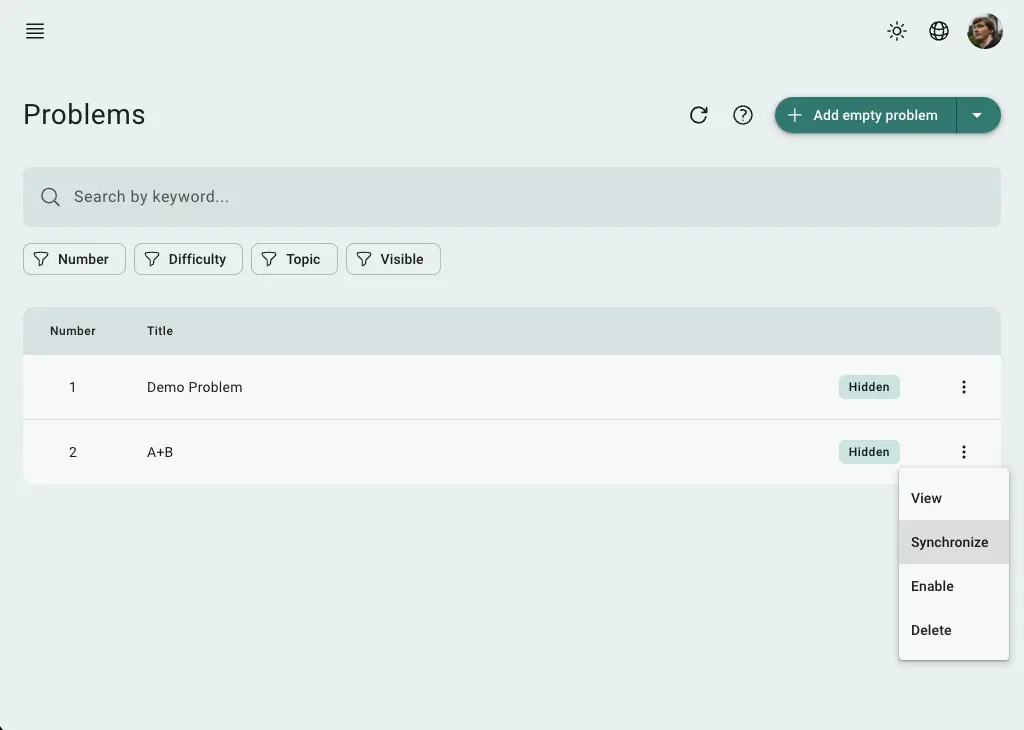
Fig 5. Problem synchronization
 Stand with Ukraine