
Import Problems from Basecamp
You can import problems from Basecamp to your space so you can use them in your own contests and courses. The process create a complete copy of the problem, which you can then modify and adapt for your needs, for example you can modify statement or add test cases.
How to Import a Problem
You can import any public problem from Basecamp, using it's link on the site.
Find problem in the archieve and copy its link, for example: https://basecamp.eolymp.com/problems/1.
Open the console and log in to your account.
Select the space where you want to import the problem and navigate to the "Problems" section.
Click on the right side of the "Create problem" button to see more options.
Select "Import problem."
Paste the problem link you copied in step 1 and click "Import."
Once you click “Create problem,” Eolymp will generate a new, empty problem and begin importing the data. This process usually takes a few seconds, depending on the size of the problem.
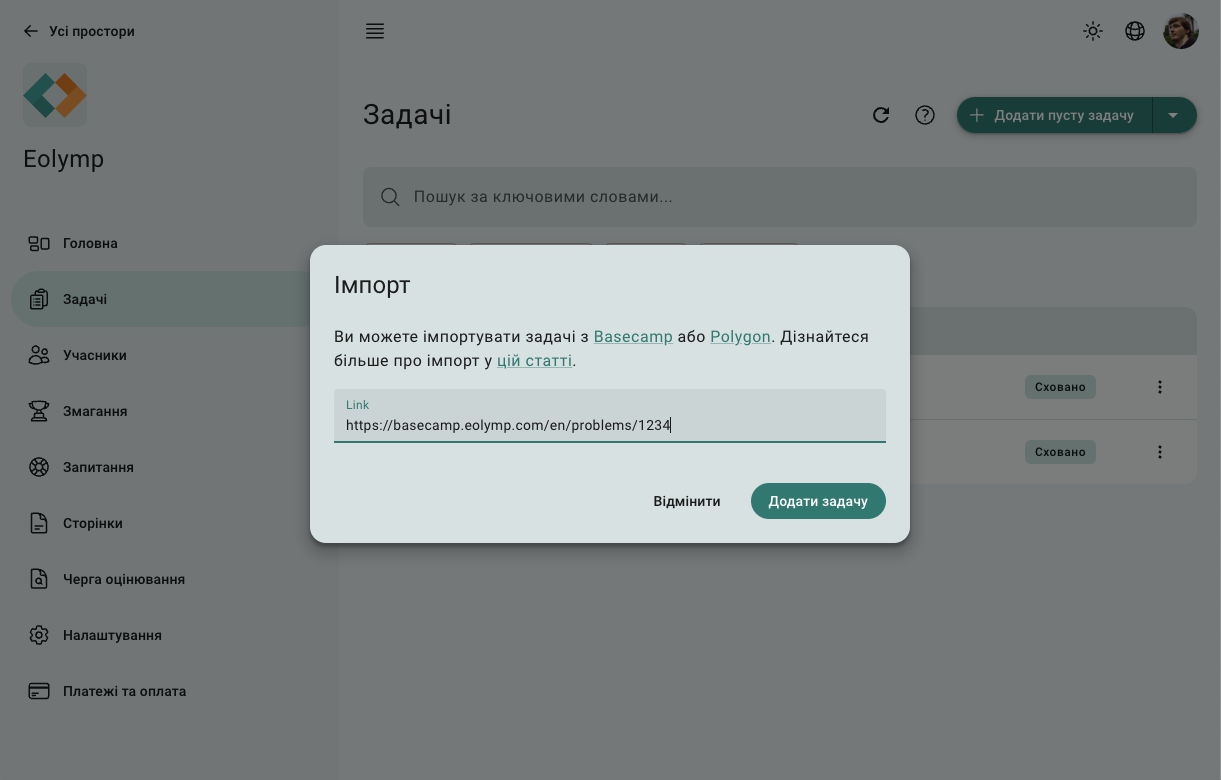
Fig 1. Problem import form
You can monitor the import progress in the "Activity" tab.
Note: If you don’t have access to certain testing details like test cases, checkers, interactors, or code templates, they will be hidden and won’t be visible to the space administrator. You can replace these with your own configurations (such as adding your own secret tests), but you won’t be able to view the original test data.
Synchronizing Changes
After importing a problem, you can keep it up-to-date with the latest changes from the original space by using the "Synchronize" button in the problem list.
Additionally, any changes you’ve made to the imported problem will be overwritten during synchronization.
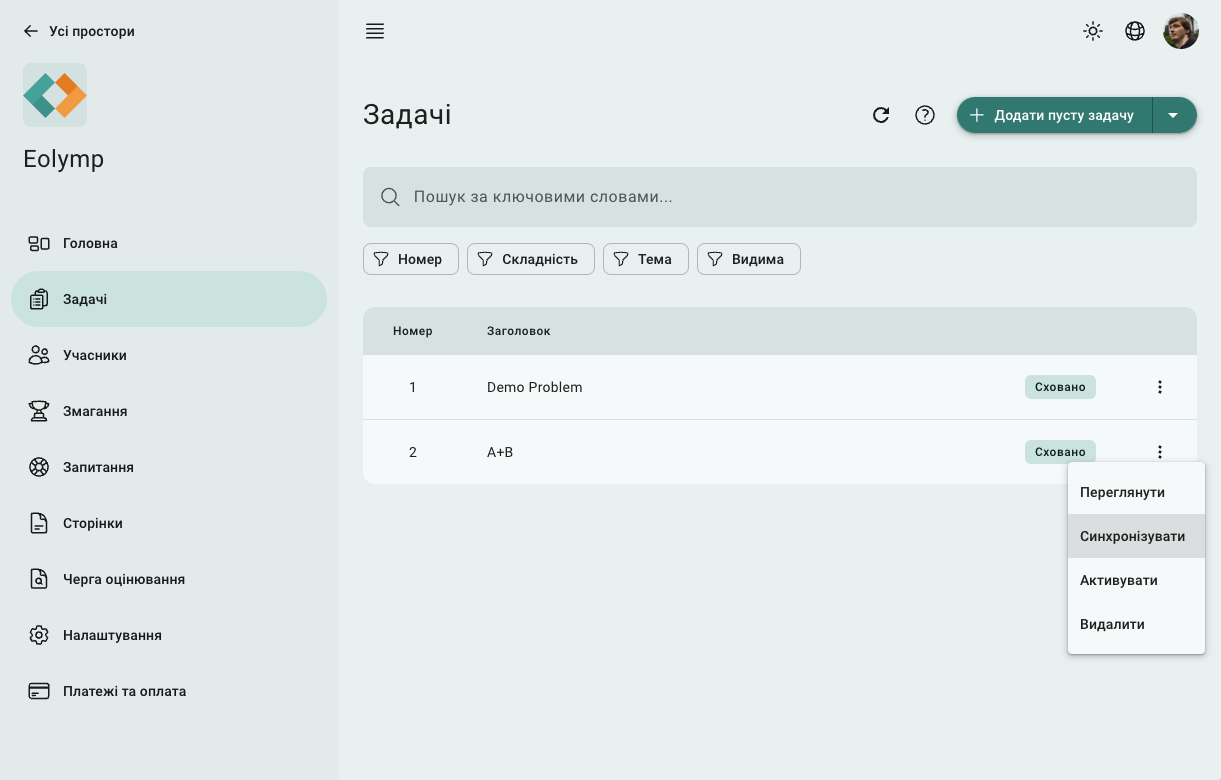
Fig 2. Synchronizing menu item
 Stand with Ukraine