
Display Name
The Display Name setting allows you to choose how members' names are displayed in the console and on the site. By default, the system will display a member’s nickname (login), but you can change this to show their full name or a custom field instead.
To modify the display name setting, follow these steps:
Open the console and select the space you want to configure.
Click on Settings in the left-hand menu.
Go to the Members section and click on Display Name.
In the dialog box, you can choose one of the following options:
Nickname: Displays the user's nickname (login).
Name: Displays the user's full name from their "Basic Information."
Other: This option opens an additional field where you can select a custom field to use as the display name.
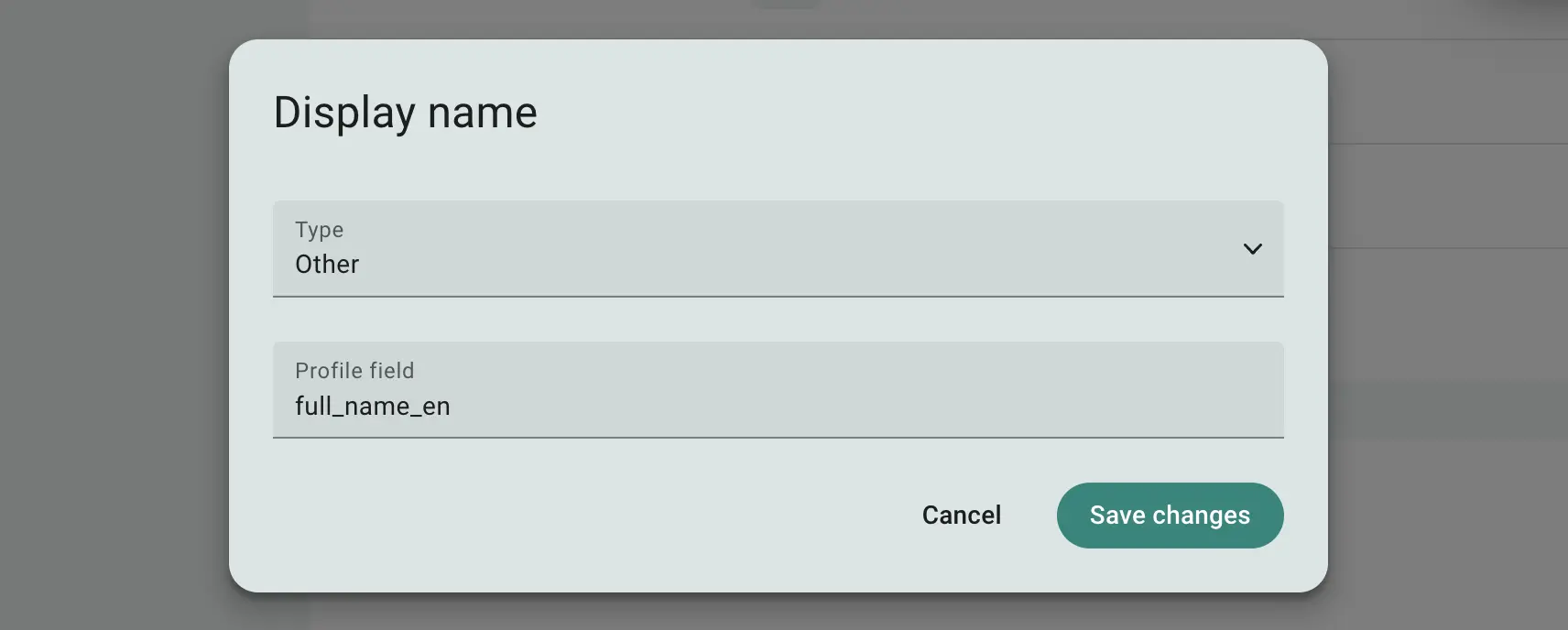
Fig 1. Display Name configuration dialog
The changes may take a moment to apply, but once ready, the updated display names will appear in the member list and wherever the member's name is shown.
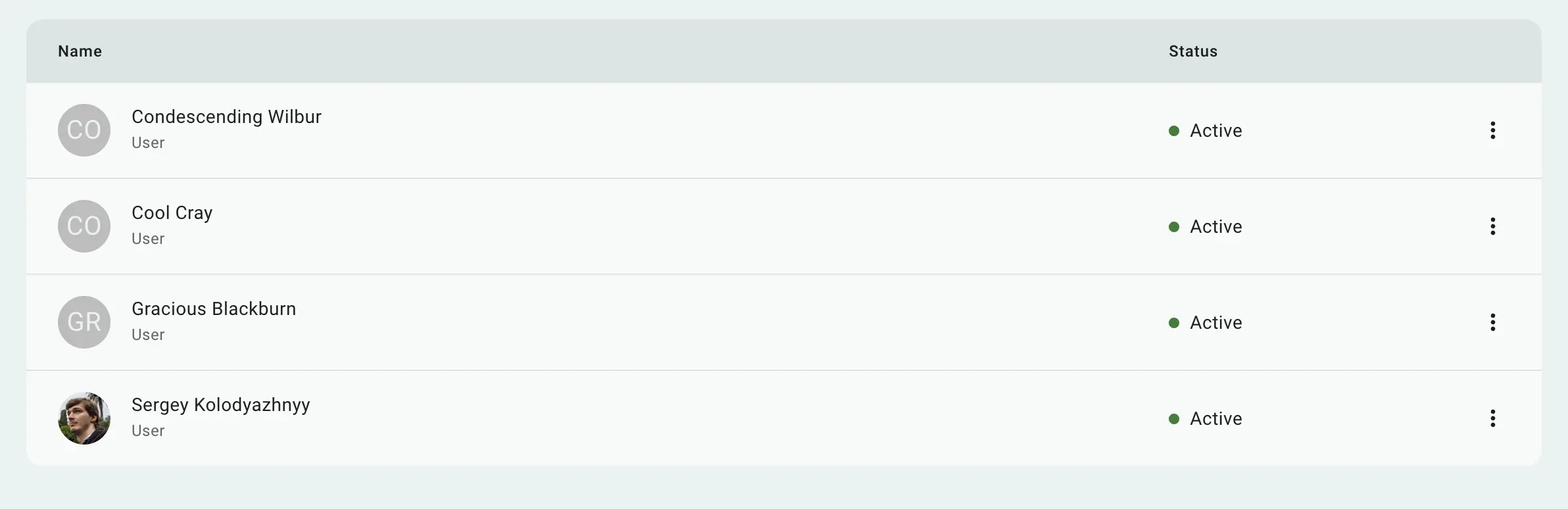
Fig 2. Full Name used as Display Name in the member list
 Stand with Ukraine