
Add members
You add people to a space from Members → Add user. What the form asks for depends on the space's identity provider, because that decides who owns the person's username and password.
You need permission to change members.
Before you start
These four settings shape every member you create, and two of them are awkward to change later, so decide them first:
Identity provider — whether people sign in with an Eolymp account, with credentials your space keeps, or through Google Workspace or OpenID Connect.
Profile fields — the extra information you want to hold about members. Fields you define before people sign up become part of the registration form.
Display name — whether names appear as nicknames, full names or the value of a profile field.
Groups — the labels you'll use to filter members and to add them to contests and courses in bulk.
Add a user
A user is an account someone signs in with, and each one that signs in during the billing period takes a seat.
Open the console and select your space.
Go to Members.
Click Add user and fill in the form.
The form differs by identity provider:
Provider | What the form asks for |
|---|---|
Eolymp accounts | Username only — an autocomplete over existing Eolymp accounts. |
The space's own database | Name, Nickname, Email, Country, Birthday and Password. |
OpenID Connect | Subject, which may be left blank, and Email. |
Google Workspace | Email only. |
The nickname and password fields each have a shuffle button that generates a random value. The generated password is shown rather than hidden, so you can copy it before you save.
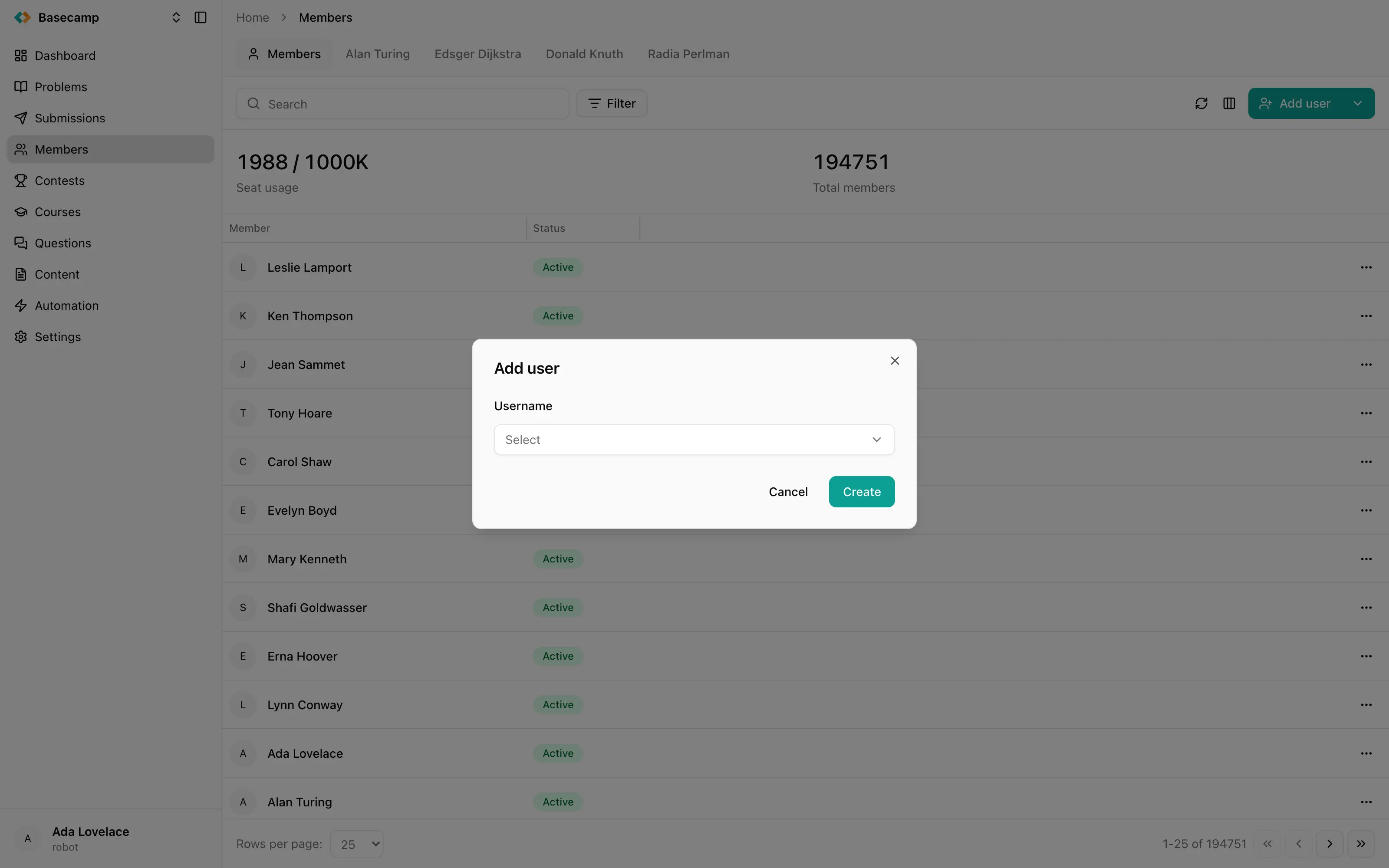
Fig 1. Adding a user in a space that uses Eolymp accounts: one Username field, matched against existing accounts.
Saving creates the member and opens their screen. From there you can fill in profile fields, assign groups and put them in a team.
Where identity comes from Eolymp or an external provider, you can't edit the person's name, nickname, email, password or picture — those live in the account they sign in with, and the console shows a disabled External chip in place of the Edit button on the Account card.
Add a ghost
Add ghost creates a name-only record with no account. Use it to stand in for someone whose results were imported from elsewhere: a ghost can appear in results and on a scoreboard, but nobody can sign in as one. Ghosts take no seat.
Let people add themselves
You don't have to create every member by hand. When sign-up is enabled, anyone who signs in to your space's website gets a member record automatically — with Eolymp accounts or an external provider, on their first sign-in; with your own user database, through the sign-up form, after verifying their email address and completing the profile form.
Turning sign-up off means only members an administrator added can sign in. Both switches live with the identity provider settings.
Assigning participants to a contest is the third route: it can create the member records the contest needs.
Removing someone again
Deleting a member erases their data in this space and can't be undone. If you only want to stop someone signing in, disable them instead — see Disable, restrict and remove a member.
 Разом з Україною