
Enrol students
A student is a member of your space who has been enrolled in a course. Enrolling somebody creates their record, their assignments and their place in the gradebook; it does not by itself give them anything to read, because that is what assignments do.
There are four ways someone becomes a student: you enrol them one at a time, you enrol a group they belong to, they join a Public or Unlisted course themselves, or you assign them a module and their record is created along with it.
Before you start
Enrolling students, enrolling groups and assigning modules all run on the course assignment permission, which is separate from the permission to edit a course. Someone who builds courses does not automatically get to put people in them.
Grant a teacher both the course assignment permission and the course write permission. The buttons on the Students tab are shown on the basis of the write permission while the actions behind them run on the assignment permission, so with only one of the two, a teacher either sees buttons that fail or holds the permission and finds no buttons to press. Both permissions can be granted on a single course rather than space-wide, so one person can run one course without seeing the rest. See Access management.
Enrol one student
Open the course and go to the Students tab.
Press Add student.
Choose the Member to enrol.
Decide on Assign all modules. With it set, the student gets every published module immediately, with no schedule and no assignments to make. Left off, they see nothing until you assign modules to them or a group does.
Save.
The student appears in the list with the status Active, and in the Gradebook.
Enrol a whole class
Put the people in a group in the Members section, if they are not in one already.
Open the course and go to its Groups tab.
Press Add group and choose the group.
Every member of the group becomes a student of the course, and anyone who joins the group later is enrolled automatically. Removing the group from the course takes away the access it granted but keeps the students' records and their results.
A group is also how you schedule a module for a class in one go rather than student by student.
Let students enrol themselves
Set the course's Visibility to Public or Unlisted in its Settings. A signed-in member can then press Join on the course landing page on your space's site — Public courses are listed there for everyone, Unlisted ones only reachable by link. Private courses refuse joining.
Students who join this way arrive with Assign all modules set, so the whole course is open to them at once. If you want to control the pace, enrol people yourself and keep the course Private.
Disable or remove a student
Both actions are in the row menu on the Students tab, and on the student's own page under Manage.
Disable revokes access while keeping everything: the student can no longer open the course or its materials, but their assignments and all their grades survive, and their page shows a banner while they are disabled. Enable puts them back.
Delete removes the student record, their progress and their grades, and it cannot be undone. Their submissions stay in the space's submission history. Use Disable for a student who has left mid-course and Delete only for someone enrolled by mistake.
Removing a member from the space altogether removes their student records from every course.
What you can see about one student
Clicking a row opens the student's page: their status, the Assign all modules toggle, and a Progress table of every module with its assignment status and its grade. Expanding a module row lists its materials with the score against each, and a task row offers View submissions, which opens the course's Submissions tab filtered to that student and that task.
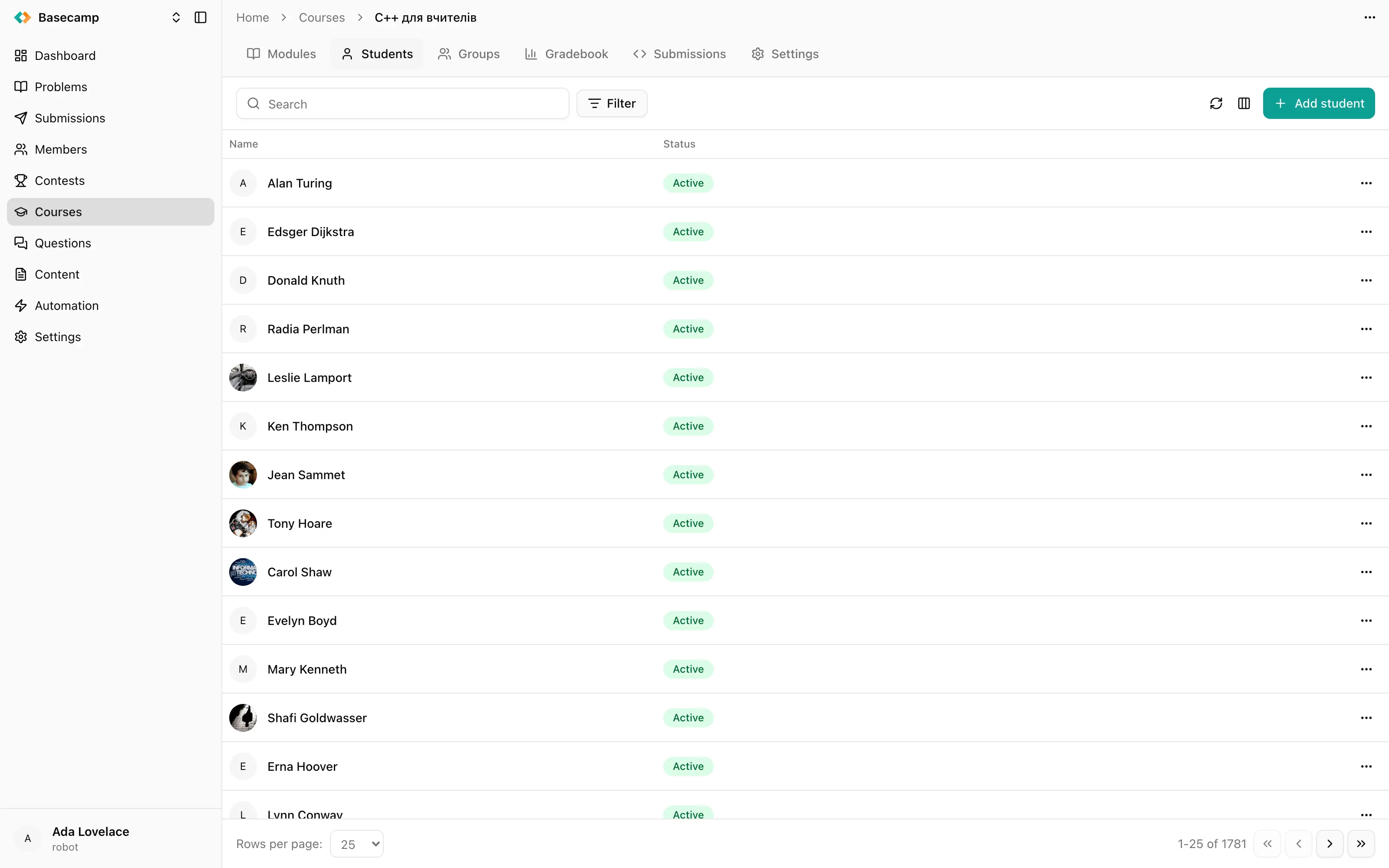
Fig 1. A student's Progress table: one row per module, with its assignment status, its grade, and the per-material scores underneath.
The header also carries Open profile, which goes to the member's page in Members.
The Students list itself can be filtered by member and by group. That group filter is the group the member belongs to in the space, which is not the same thing as the groups enrolled on the course's Groups tab.
 Разом з Україною