
Find your way around the console
Everything in the console is reached from the sidebar on the left. There's no top menu and no global search — the sidebar is the navigation, and each section opens a screen with its own tabs.
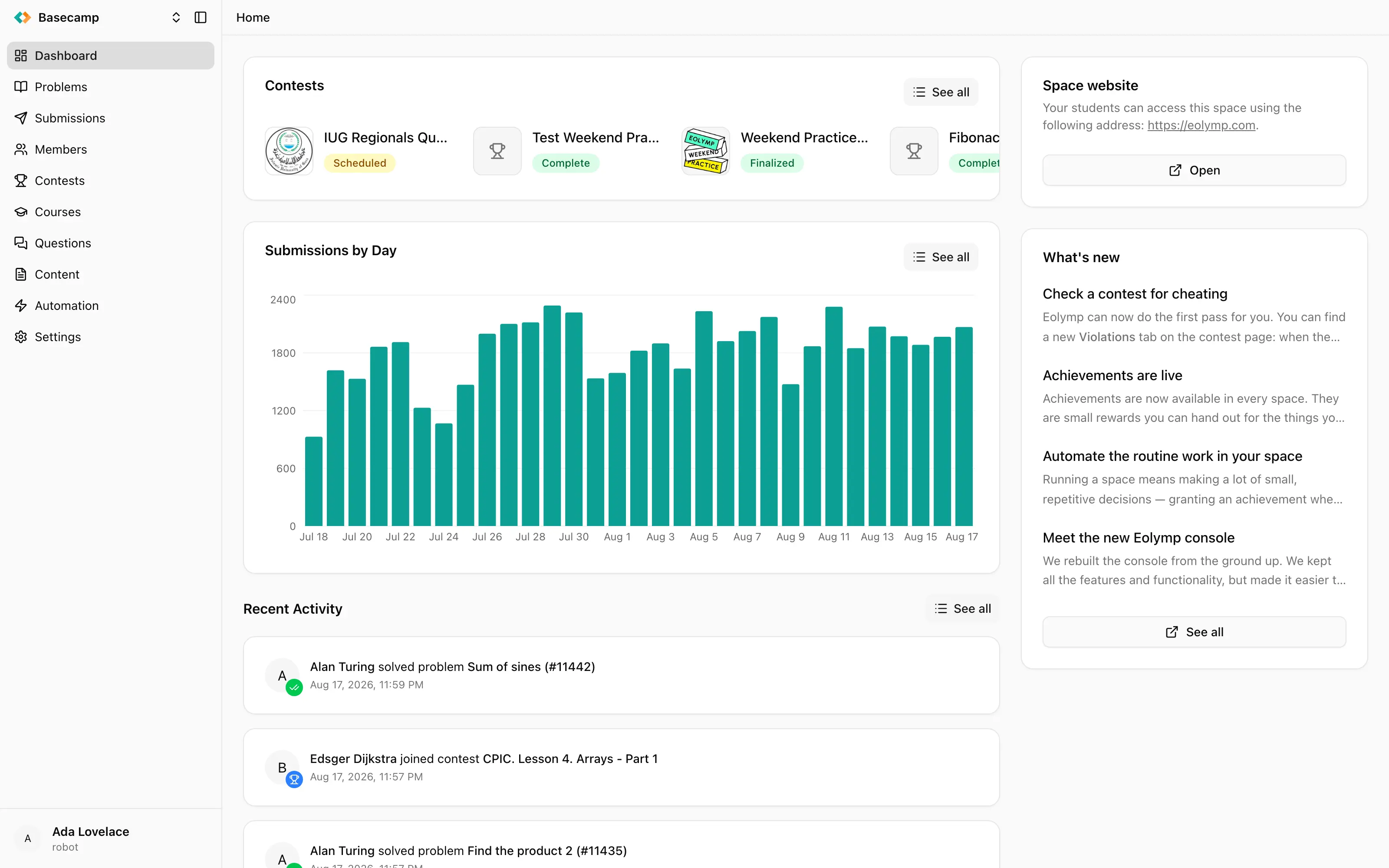
Fig 1. The console: the sidebar on the left, the dashboard of a space on the right.
The sidebar
At the top is the space switcher, showing the logo and name of the space you're in. Click it to search your spaces and move between them, or choose View all spaces for the full list.
Below it are the sections — Problems, Submissions, Members, Contests, Courses, Questions, Content, Automation and Settings. Questions carries a badge with the number of questions still waiting for an answer; it disappears when there are none.
At the bottom is your own account: your name and avatar, opening a menu with your personal Settings and Sign out.
The sidebar collapses to a strip of icons if you'd rather have the room, and it remembers that choice. On a phone it slides over the page and closes when you go somewhere.
Sections you don't have permission for aren't shown at all, so two administrators of the same space can see different sidebars. See Why a section is missing.
Inside a section
Sections that hold more than one kind of thing open with tabs across the top. Members has Members, Teams, Groups, Newsletters and Achievements; Content has Pages, Posts and Emails; Automation has Rules and Logs.
Clicking a row — a problem, a contest, a member — opens that thing's own screen, which again has tabs: a contest has Overview, Problems, Participants, Submissions, Scoreboard, Announcements, Pages, Violations, Activity and Settings. The breadcrumbs above the tabs take you back up.
Most lists can be searched, filtered and sorted, and you can choose which columns to show. Those choices live in the page's address, so a filtered list is a link you can bookmark or send to a colleague.
The banner above the navigation
If your space is on a trial or has been suspended, a coloured banner sits above the sections saying so. On a trial it's amber; a suspended space shows a red Inactive banner, and renewing the subscription restores access. If you're allowed to see billing, the banner takes you there.
Your personal settings
The Settings entry in your account menu at the bottom of the sidebar is about you, not the space:
Language — the language the console interface is shown in.
Timezone — every date and time in the console is displayed in the timezone you pick here, or the one your browser reports if you leave it on automatic. If the two disagree, the page tells you.
Theme — light, dark, or whatever your operating system is set to.
Notifications — which emails you want: new posts, new comments on problems or posts, new questions and replies, and updates to problem issues. These are set per space, so you can follow one space closely and another not at all.
Your name, email address and password aren't kept in the console — Manage account opens accounts.eolymp.com, where you change those.
Long-running jobs
Some things take a while: rejudging every submission for a problem, importing a large problem, rebuilding a scoreboard. The console starts these in the background and lets you carry on. You can follow them on the Background tasks screen, which shows what's running, what finished, and what failed.
 Stand with Ukraine