
Customize navigation
You can customize the space site menu: change the order of links, add pages or remove standard links, etc.
To do this, create a page with the path /nav:
Open space in console
Go to the "Pages" section and create a new page
Enter any title, for example "Navigation"
Set path parameter to
/navEnter content in Markdown format as described below
If the /nav page exists, it replaces the site space menu on the left side of the interface.
The content of the /nav page should contain one or more lists that will be displayed as menus. Example:
- [Item 1](/item1)
- [Item 2](/item2)
- [Item 3](/item3)
Formatting in the list is ignored
Links
List items must be links, referencing an external address, or one of the standard pages:
Link | Page |
|---|---|
| a list of problems |
| a list of contests |
| a list of posts |
| other links will display page with corresponding |
Icons
Eolymp will automatically choose an icon for each menu item, but you can customize the icon by specifying it explicitly, using following format [:icon: Label](/path). See list of standard icons below.
You can also insert an images to be used as an icon. If an item in the list has an image it will be displayed instead of icon.
-  [Item 1](/path 1) -  [Item 2](/path 2)
We recommend to use icons in SVG format.
Standard icons
Icon |
|---|
|
|
|
|
|
|
|
|
|
|
|
|
Example
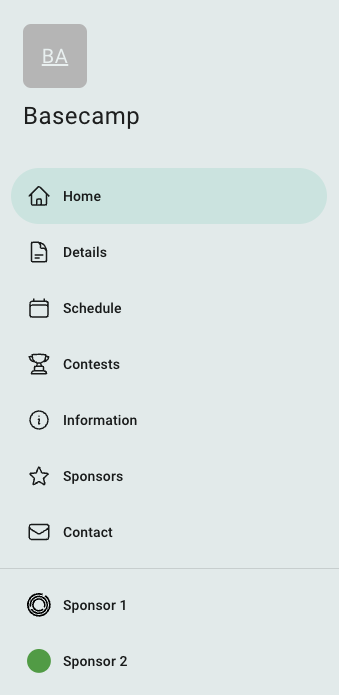
Example menu for space,
- [Home](/) - [Details](/details) - [Schedule](/schedule) - [Contests](/contests) - [Information](/info) - [:star: Sponsors](/sponsors) - [:envelope: Contact](/contact) --- -  [Sponsor 1](https://www.eolymp.com) -  [Sponsor 2](https://www.eolymp.com)
This menu is displayed as
 Stand with Ukraine