
Members
A member is one person's record in one space's own user database — everyone who signs in to your space's website, solves problems, competes, follows courses, comments and gets email from you. Membership doesn't travel between spaces: the same person in two spaces is two unrelated members with separate profiles, separate statistics, separate rating and separate achievements.
A member record holds identity details (who the person is and how they sign in), the space's own profile fields, the member's own preferences, group assignments, statistics and rating. What someone is allowed to administer is not part of it: console access is granted separately under Access management, and a space administrator doesn't have to be a member of the space at all.
Seeing the section needs permission to read members; every change on it needs permission to change members.
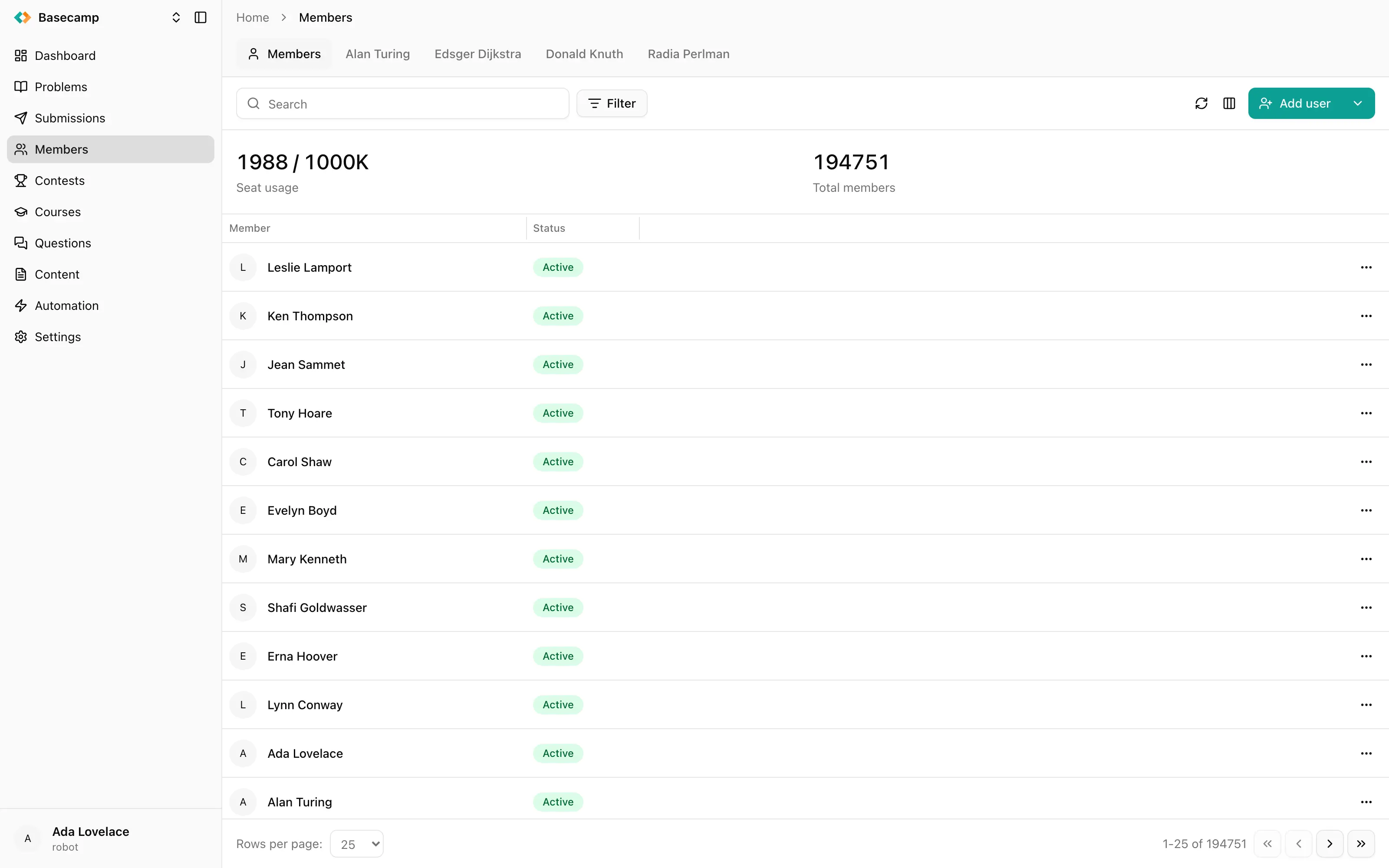
Fig 1. The Members list, with seat usage and total members above it.
The three kinds of member
All three are created from the Members section, and all three can hold profile fields, take part in contests and appear on a scoreboard.
Kind | What it is | Seat |
|---|---|---|
User | A real account someone signs in with. | Consumes a seat. |
Team | A member in its own right, into which other members are assigned. Listed on its own tab — see Teams. | Free. |
Ghost | A bare name with no account, standing in for someone whose results were imported from elsewhere. Ghosts cannot sign in. | Free. |
How people become members
Which routes exist depends on the space's identity provider:
Eolymp accounts (the default) — people sign in with the Eolymp account they already have, and a member record is created for them. Members added from the console are picked from existing Eolymp accounts by username.
The space's own user database — you create members with a password yourself, and, when sign-up is enabled, people can register on the site: sign up, verify the email address, then complete the profile form built from your profile fields.
OpenID Connect or Google Workspace — people sign in through the external provider. The record is created on first sign-in, or added in advance by subject or email address.
Sign-up can be turned off, in which case only members an administrator added can sign in. Independently, the space can require a verified email address; until a member confirms theirs, they can't submit solutions, comment, vote, publish posts or ask questions.
Contests add a second route of their own: assigning participants to a contest can create the member records it needs.
To add someone yourself, see Add members.
Status and flags
Flag | Shown as | Meaning |
|---|---|---|
Active / inactive | Active (green) or Inactive (red) status badge | An inactive member cannot sign in or reach the space. |
Official / unofficial | Unofficial (amber) status badge | An unofficial member is excluded from official rankings. They still take part, and still see their own results. |
Incomplete | Not shown as a column | Required profile fields are still unanswered. Set until the person completes the profile form after signing up. |
Seated | Seated column, Seated on in the member's header | The member signed in during the current billing period, and therefore occupies a seat. |
The status column collapses these into one value: inactive wins over unofficial, otherwise active. Changing any of them is covered in Disable, restrict and remove a member.
Seats
Above the list are two figures: Seat usage — members seated in the current billing period against your plan's seat allowance — and Total members. Only users count; teams and ghosts are free. A member becomes seated the first time they sign in within the period, so a space with many dormant accounts uses fewer seats than it has members. See Quotas and limits.
The members list
The list shows everyone in the space except teams, sorted by display name.
Member (avatar and display name) and Status are the columns shown by default; Email, Full name, Nickname, Country, Birthday and Seated can be added from the column picker, and columns can be resized and reordered. The email cell carries a coloured dot: green for a verified address, red for one that isn't verified.
You can filter on ID, Name, Nickname, Email, Active, Official, Seated and Group, and free-text search matches names and identity details. Someone without administrative access sees active members only, and cannot filter on identity details such as an email address.
What a name looks like in this list — nickname, full name or a profile field — is a space-wide setting: see Display name.
A member's screen
Clicking a row opens the member. The header shows the avatar, the name, the status badge, the nickname prefixed with @, and two dates: Joined on, when the record was created, and Seated on, when the member last started occupying a seat. Opening a team from any list takes you to the team page instead.
Overview holds the stat row (rating, problems solved, accepted submissions), the badges the member has earned, a twelve-month contribution graph switchable between Accepted, Submitted and Solved, their five most recent contests and ten most recent submissions. Below those are four cards: Account (identity details and groups), Profile (your space's profile fields), Preferences (the member's own interface language and default runtime, read-only here) and Controls (status, official/unofficial, delete).
Activity is a reverse-chronological feed of what the member did in the space — problems solved, contests joined and finished, comments, posts, achievements earned — twenty entries at a time. The same feed appears on the member's public profile, and a space-wide version on the console dashboard.
The remaining tabs each have their own page: Credits, Rating, Penalties and Achievements. Credits and Rating appear only if your plan includes them.
The header menu repeats the actions from the list and adds a Run entry for every automation rule whose trigger is a member action; running one passes this member to the rule.
The other tabs
Teams, Groups, Newsletters and Achievements sit beside Members in the tab bar. Newsletters appears only when your plan includes newsletters, and Achievements only with permission to change members and a plan that includes achievements — see Why a section is missing.
Tab | What it's for |
|---|---|
Teams as members in their own right, and their rosters. | |
Named labels on members, used for filtering and for adding people to contests and courses in bulk. | |
Bulk email to a chosen set of members. | |
The catalogue of badges your space can award. |
 Stand with Ukraine