
Automation
Automation lets your space react to events on its own. You define rules, and each rule runs automatically whenever something happens — a submission is judged, a contest ends, a new member joins. Instead of watching for these moments and acting by hand, you describe once what should happen, and the platform takes care of it.
You manage automation from the console: open your space and go to the Automation section. It has two tabs — Rules, where you create and edit rules, and Logs, where you can review every time a rule ran.
How a rule works
Every rule has three parts:
Trigger — the event that starts the rule, such as a completed submission or a finalized contest. Each rule has exactly one trigger.
Conditions (optional) — filters that decide whether the rule should act on a particular event. For example, a rule triggered by a completed submission might continue only if the verdict is "Accepted". If you add several conditions, all of them must match. With no conditions, the rule acts on every event of its trigger.
Actions — what the rule does when it fires. A rule can have one or more actions, and they run in order.
When an event happens, the platform finds the active rules for that trigger, checks their conditions, and runs the actions of the ones that match.
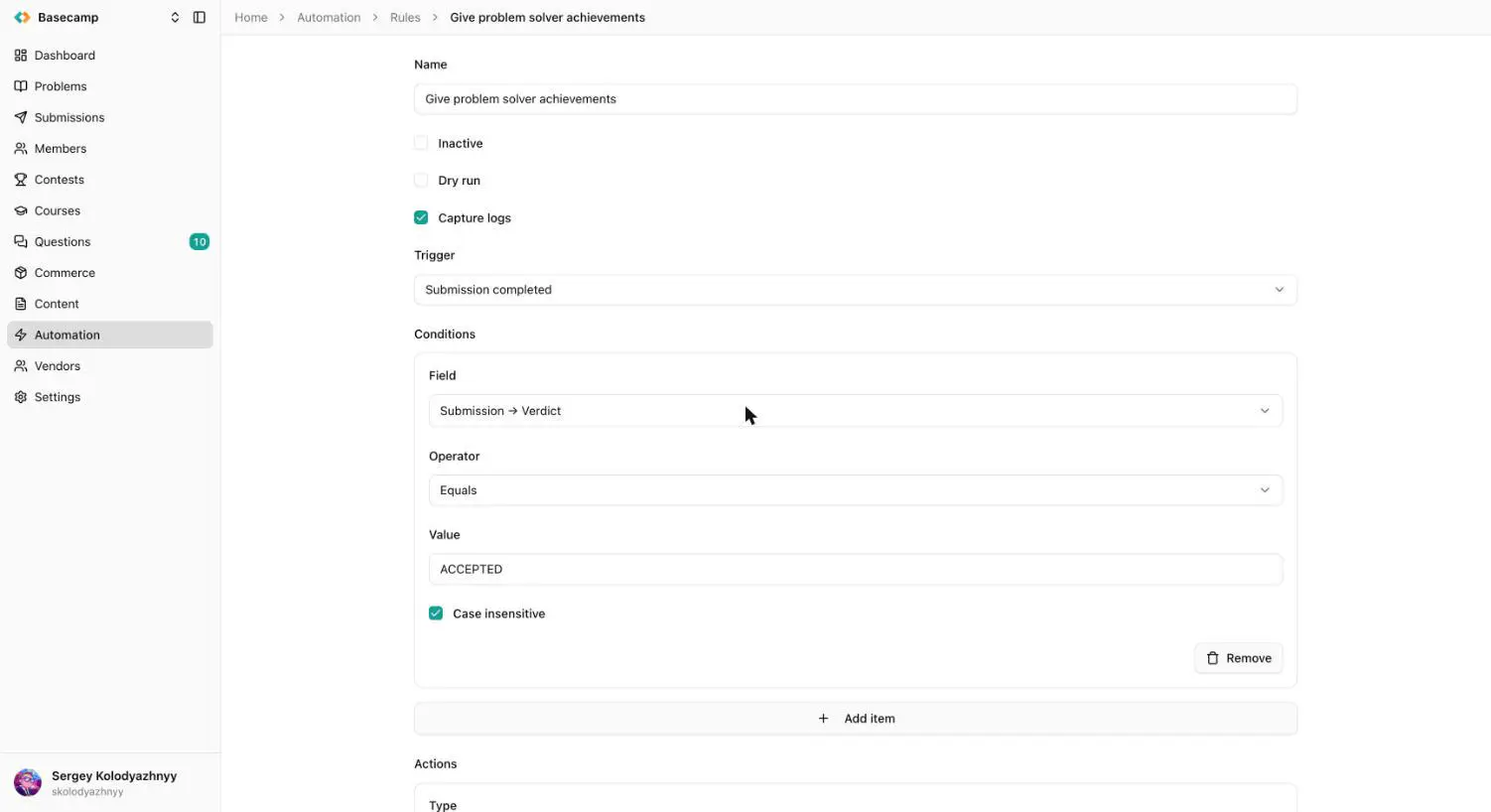
Fig 1. Editing a rule in the console — its trigger, conditions, and action.
Triggers
A trigger is the event a rule listens for. Most triggers fire automatically as people use your space; two are manual and let you run a rule on demand.
Automatic triggers
Trigger | Fires when |
|---|---|
Submission completed | A submission finishes judging and receives a verdict. |
Contest submission completed | A submission made within a contest finishes judging. |
Contest finalized | A contest is finalized. |
Contest score changed | A participant's score changes during a contest. |
Participant registered | Someone registers as a participant in a contest. |
Participant finalized | A participant's result in a contest is finalized. |
Member changed | A member joins your space or an existing member is changed. |
Question created or replied | A question is asked or answered in a contest. |
Manual triggers
Trigger | Use it to |
|---|---|
Contest action | Run a rule on demand against a specific contest. |
Member action | Run a rule on demand against a specific member. |
Manual triggers don't fire on their own. You run them yourself with the Trigger button next to the rule, choosing the contest or member to run it against. They're handy for one-off jobs and for testing a rule before you rely on it. Because finalized contests and results are frozen, changes to a contest's participants — medals, official status, extra time — are best made with Contest action before finalizing.
For what each trigger is useful for and the exact data it makes available to a script, see Automation Scripts.
Actions
Actions are what a rule does when it fires. There are two kinds, and a single rule can combine them:
Script — a short program that talks to the platform directly. Use it when the steps are fixed and you want them to run exactly the same way every time — for example, granting an achievement whenever a condition is met. See Automation Scripts for the language and the full list of functions.
AI agent — you describe the task in plain language and give the agent a set of tools it may use. The agent decides which tools to call and in what order. Use it for tasks that need judgment or vary from case to case — for example, reading a contest question and replying to it.
The list of tools available to an AI agent is covered in a separate reference page.
Trying a rule safely
While setting a rule up, you can toggle a few switches on the rule itself:
Dry run — the rule fires and runs its actions, but nothing is actually changed or saved. Use this to see what a rule would do before letting it act for real.
Debug — records detailed information about each run in the logs, so you can see which conditions matched and what each action did.
Inactive — turns the rule off. Automatic triggers won't fire it, though you can still run it manually.
Logs
Every time a rule runs, it's recorded in the Logs tab. A log entry shows which rule ran, its trigger, when it ran, and whether it was a dry run. Opening an entry reveals what each action did — including, for AI agents, each tool the agent called and what it returned. Logs are your main way to confirm a rule works and to understand why one didn't do what you expected.
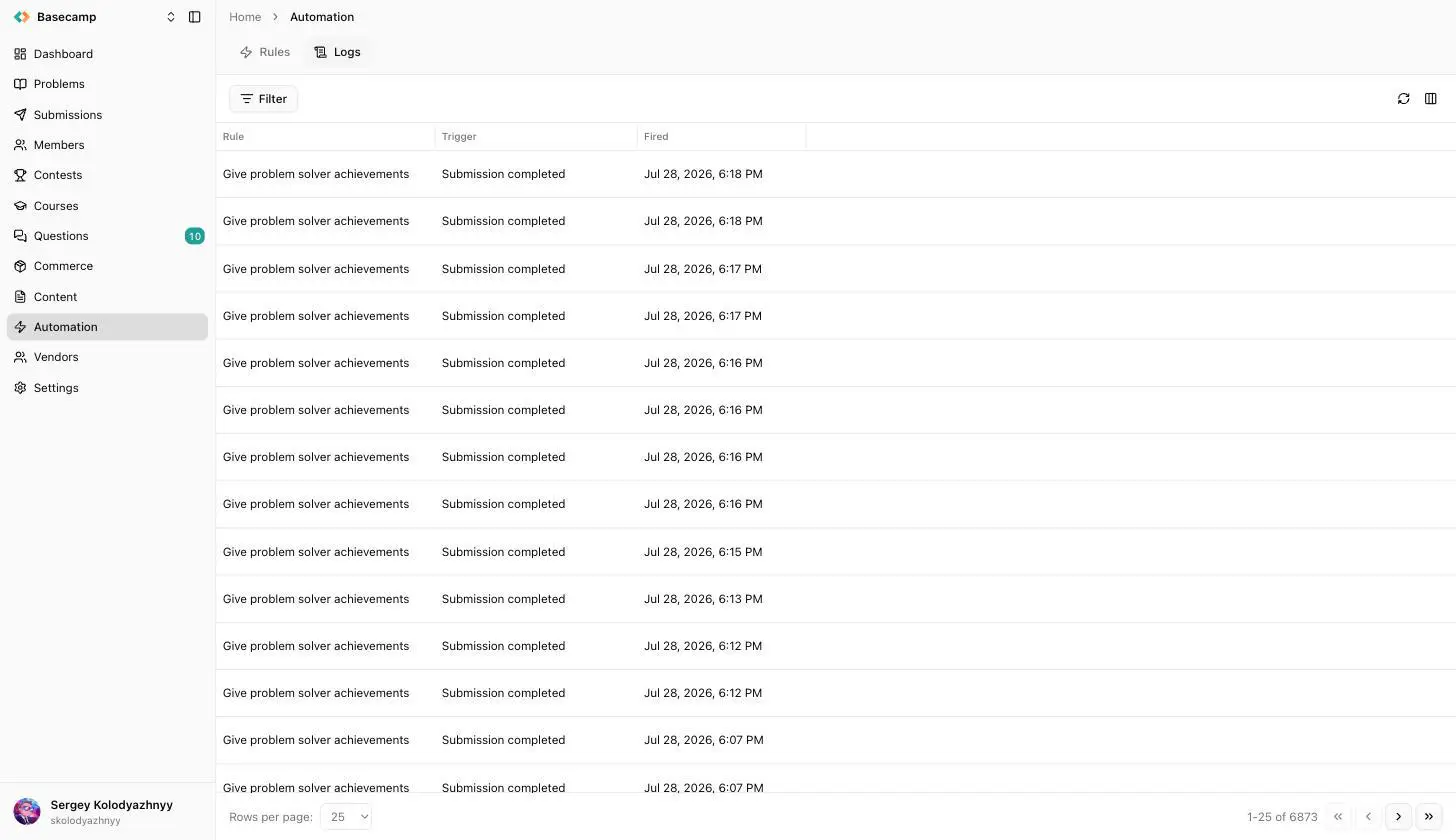
Fig 2. The Logs tab — every rule run, with its trigger and time. Open an entry to see what each action did.
Limits
Each space has a limit on the number of rules it can have and a monthly limit on how many times rules can run in total. Once the monthly execution limit is reached, rules stop firing until it resets.
 Stand with Ukraine