
Statement
The statement is what a participant reads: the task, its constraints, the input and output formats, and worked examples. A problem can have a statement in as many languages as you like — one per language — and participants get the one matching their language.
Statements live on the problem's Statement tab. You need permission to write problems to edit them.
Write a statement
Open Problems and select the problem.
Go to the Statement tab.
Click Edit on the statement card to change the statement you are looking at, or Create statement if the problem has none yet.
Fill in the fields and save.
The editor is split: the form on one side, a live preview on the other. The preview re-renders about half a second after you stop typing, using the same renderer as the public site, so what you see is what participants get.
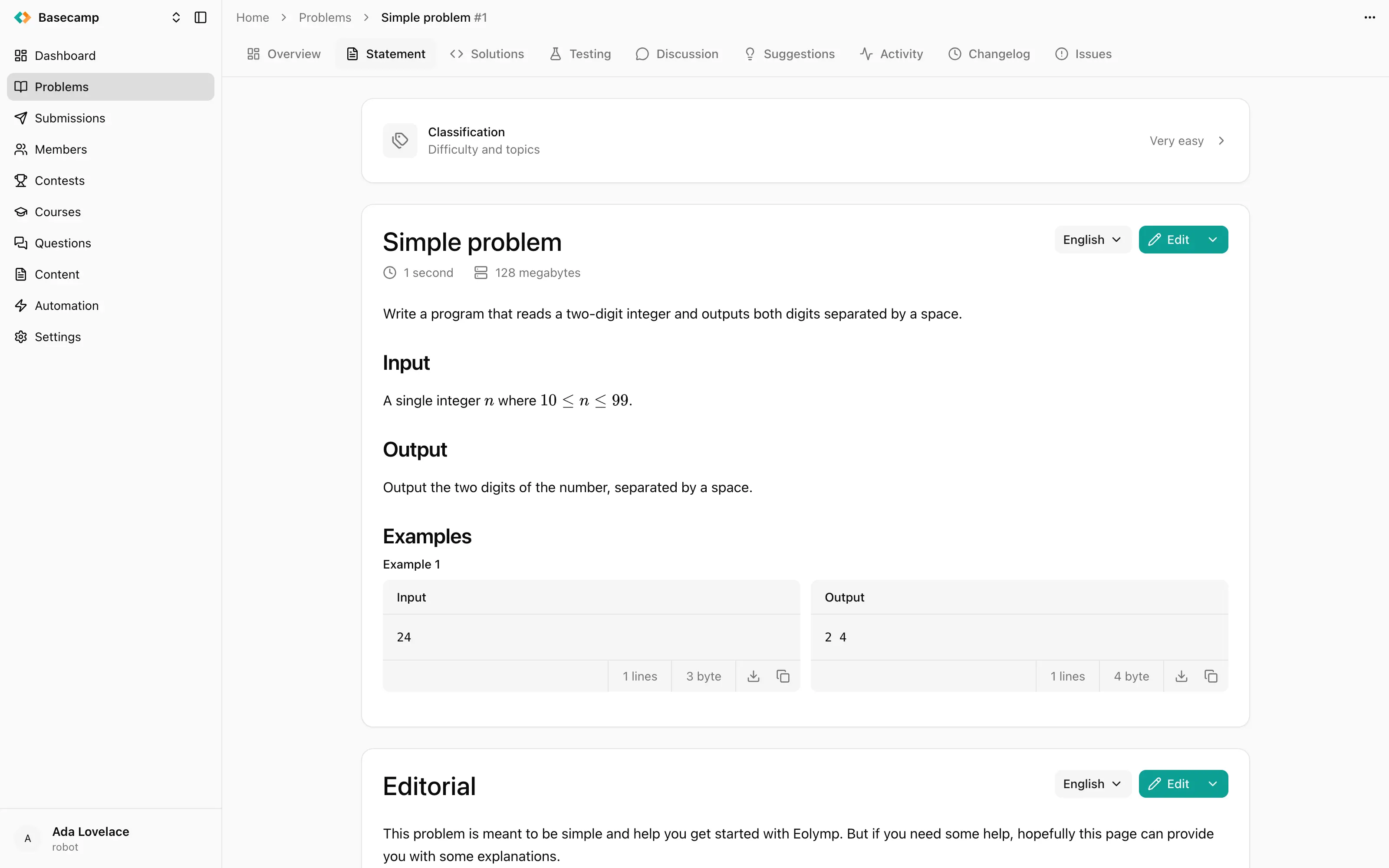
Fig 1. The statement editor: fields on the left, live preview on the right.
Fields
Title — the problem's title in this language.
Language — the locale this statement is for.
Author — the problem author's name.
Source — the contest or olympiad the problem was first published at. It shows up in the Source column of the problems list.
Statement — the body. It accepts Markdown, LaTeX, or the structured editor format.
Original statement (PDF) — the statement as it was originally published, uploaded as a PDF and kept with the statement.
Automatic translation — marks the statement as machine-produced. This flag is what auto-translation looks at when it decides which statements it may overwrite.
Draft — marks the statement as not ready.
The sections a statement can have
The renderer gives dedicated headings to the structured sections a statement declares, so every problem in your space comes out with the same section names:
the constraints block — time and memory limits, rendered as an icon row above the statement;
Input and Output;
Examples;
Interaction;
Scoring;
Note.
Write the introduction before any of them. Use Interaction to spell out the protocol for an interactive problem — participants cannot guess it — and Scoring when a problem awards partial credit, to explain what each testset is worth.
You do not type the examples. They are generated from the tests you flagged as examples, and they honour the per-test statement overrides — see Test cases.
Add a translation
The statement card has a language dropdown listing every language the problem already has, with a tick against the one on screen, and Add translation at the bottom. Add translation opens the same editor, blank, for the new language.
Deleting one language's statement leaves the others alone; the card then falls back to your interface language.
Translate automatically
Auto-translate on the statement card produces translations in the background.
Choose the Source language — one of the languages the problem already has. It defaults to English.
Choose one or more Target languages.
Decide about the two checkboxes and start the job.
Update all automatic translations adds every existing machine-produced translation to the target list, so they are all refreshed from the source. Override manual translations writes the targets even where a human wrote the translation; without it, hand-written statements are left untouched.
The tab shows Translation is running until the job finishes, and the problem's Activity tab tracks it along with the space's other background tasks.
Attach files
Attachments are files kept with the problem: supplementary data, images the statement refers to, the input archive for an output-only problem. Add them by dragging files onto the statement card — its border highlights while you drag — or with Upload attachment from the card's action menu. Each upload reports progress as a toast.
Attachments are listed as chips under the statement. A chip links to the file; its remove control asks for confirmation and names the file. Attachments are not rendered inline in the statement body.
Export a statement to PDF
Export to PDF on the statement card renders the statement you are looking at and downloads it. This exports the statement, not the problem — for a full snapshot of the problem, including its tests, use Export problem in the workspace header.
Delete a statement
Delete on the statement card removes the statement for the selected language only, after a confirmation. The problem, its other languages and all its testing configuration are untouched.
Each statement keeps its own version history, and the problem's Changelog tab records every edit.
 Apoye a Ucrania