
Participants
A participant is a per-contest record for a space member. It holds that person's role, their status, the time they started and the time they finish, their score, their submissions, and anything an organizer has set on them — extra time, a passcode, a medal, a disqualification. The space member exists independently of it: deleting a participant record leaves the member alone.
The roster on the contest's Participants tab mixes competitors with the people running the contest, because organizing roles are recorded as participants too. How people get onto it — added one at a time, added by the group, or joining on their own — is in Let people join a contest.
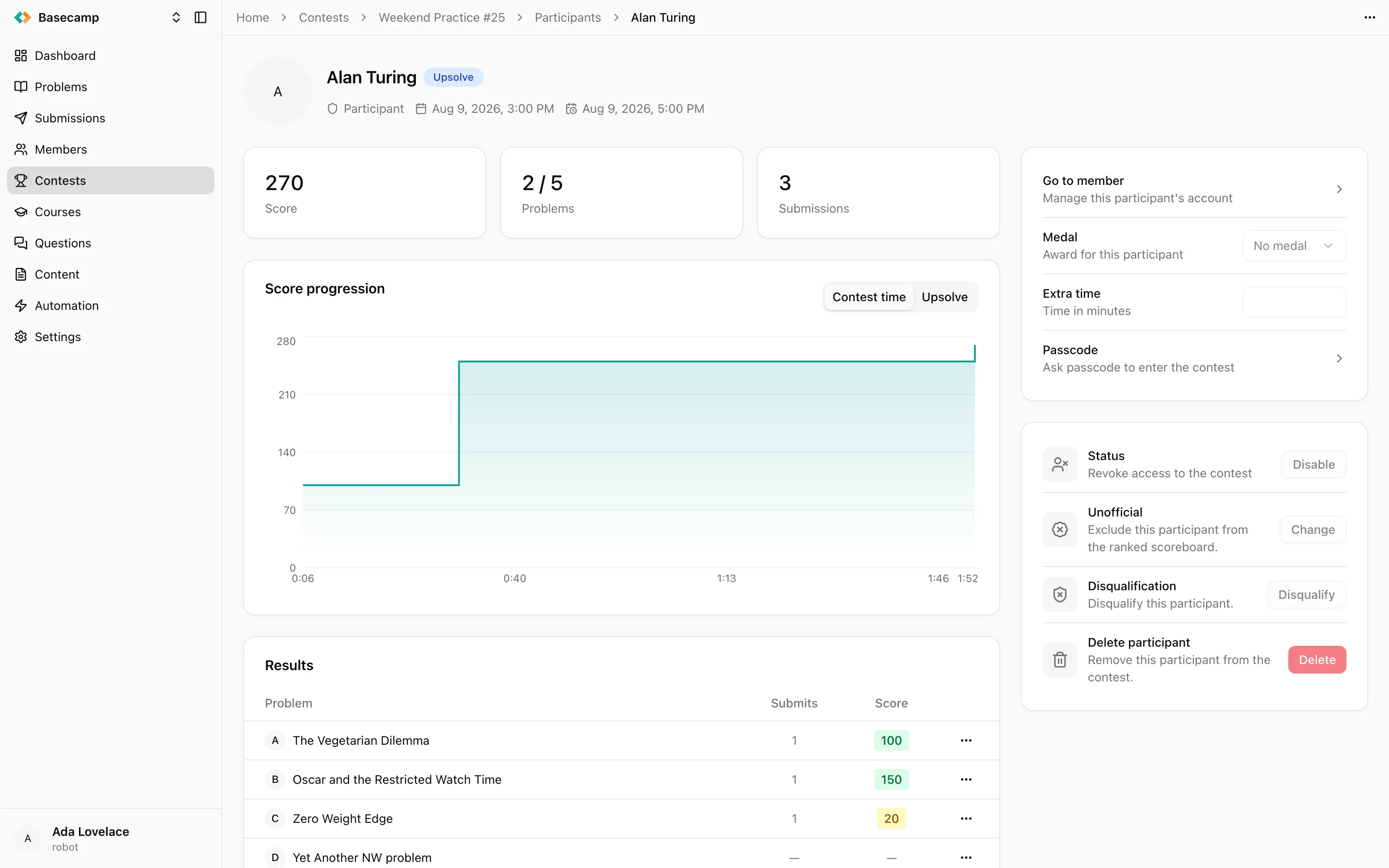
Fig 1. A participant's page: status and times in the header, results below, and the organizer's controls on the right.
Roles
Every participant has one of five roles: Participant, Staff, Tester, Author, Coordinator. Everything other than Participant counts as staff, and the reason those roles exist is to let testers and organizers into the contest interface without making them competitors.
Statuses
A participant's status is derived from the contest and from what they have done; it is not a field you set.
Status | What it means |
|---|---|
Unregistered | The person has not joined the contest |
Ghost | A placeholder standing in for a result imported from elsewhere rather than a real member |
Waiting | Registered, cannot start yet |
Ready | May press Start |
Active | Participating |
Paused | Has paused voluntarily and can resume |
Complete | Finished — the time ran out, or they finished early, or the contest ended |
Upsolve | Finished, and still solving under upsolve |
Blocked | Cannot participate: an organizer withdrew access, or the contest is suspended |
Ghost participants need a plan that allows them; so do team competitions and unofficial participation. If a contest won't take them, see Why a section is missing.
Official and unofficial
An unofficial participant takes part and is scored, but out of competition: they get no official rank on the scoreboard, and their row is muted and badged OOC.
Participation becomes unofficial in three ways — an organizer ticks the box when adding them, the contest has Join unofficially switched on and they joined by themselves, or an organizer switches them over afterwards from their participant page.
The distinction matters at the end as well as during: finalizing freezes official participants and leaves unofficial ones editable.
Teams
A team is a member of the space like a person is, so a team is added to a contest the same way and competes as a single participant with one score and one row on the scoreboard. Team competitions need a plan that allows them. How teams themselves are made up is in Teams.
The participant's page
Clicking a row on the Participants tab, or a row on the scoreboard, opens that participant:
Header — their picture, ringed in the medal colour when a medal is set, their display name, status, role, and the times they started and finish.
Stats — score, problems solved out of the contest's total, and the number of submissions, with a link to that participant's submissions.
Score progression — a chart of score against elapsed participation time, switchable between contest time and upsolve. ICPC contests add a penalty line on a second axis.
Results — one row per contest problem with the number of submits and the score achieved, each linking to the library problem and to that participant's submissions for it.
Submissions — their most recent submissions. What the statuses and verdicts on them mean is in Statuses and verdicts.
Settings — a link to the member's profile, and the three things an organizer sets on one participant: Medal, Extra time and Passcode.
Controls — Enable and Disable, Mark official or unofficial, Disqualify or Undisqualify, and Delete.
Settings and Controls need permission to write contests, and are disabled for official participants once the contest is finalized.
Disable, disqualify, delete
Three different things, easily confused:
Disable withdraws a participant's access to the contest while keeping everything — the record, the score, the start time and the submissions. Enable gives it back. Their status shows as Blocked in the meantime. This is what you use for someone who has to leave the room.
Disqualify marks the participant disqualified and records a reason, which stays with the record. A disqualified row loses its official rank and is struck through on the scoreboard, or is hidden entirely when Hide disqualified is on. Undisqualify reverses it.
Delete removes the contest record and with it the participant's standing. The space member is untouched and can be added again later, but as a new participant with nothing on it.
Confirming a violation does not disqualify anyone. Disqualification is a separate decision, taken here, after you have reviewed the case.
On a finalized contest these are offered only for unofficial participants.
Passcode
A passcode is a per-participant secret, not a contest-wide password. While a participant has one, their client can see the contest but neither the problems nor anything to submit until the passcode has been entered. Participants without one are unaffected, so a passcode can be given to some people and not others.
It is set on the participant's page. An existing passcode is shown masked — the first two characters, then ****. Typing a value sets it, the shuffle button beside the field generates a six-digit numeric code, and clearing the field removes the passcode altogether, which lets in clients that never entered it.
Entering a passcode is remembered against the credentials that entered it, and only for a number of hours. Changing a passcode shuts out clients that had entered the previous value — useful if a code leaked mid-contest, and a nuisance if you do it by accident.
There is no way to print or export passcodes for a whole roster: they are set and read one participant at a time.
Admission
With Require admission on, in Settings → Participation, a registered participant is held out of the contest until an organizer accepts them in person. The participant's client shows their photograph, their name and a short admission code; the organizer looks the code up, checks the person in front of them, and accepts it.
What is admitted is one session, for a limited time. The same person on a second device has to be admitted again.
Passcodes and admission are independent gates. A contest can use either, both or neither.
Finding people on the roster
Free-text search matches the name. The filters are Member, Status, Official, Disqualified, Active, and Violations — the last one showing everyone who still has a pending or confirmed violation against them, which is the list you want after working through the violations queue.
Columns are name, with the role underneath, status, and score.
 Apoye a Ucrania