
Posts
A post is a dated, authored entry in your space's feed — a news item, an announcement, an article. Readers find posts at <your space's address>/posts and each one has its own address underneath that. Posts carry a type, labels, a cover image, votes and a comment thread, which is what makes them different from a page.
You write posts from Content → Posts in the console. Creating, editing, publishing, moderating and deleting them needs permission to change posts.
Write and publish a post
Open Content → Posts and press Add post.
Write the Content. Start it with a level-1 heading (
# …) — that heading is the post's title.Choose a Type if your space defines any, and add Labels if you use them.
Decide on Feature on home page, which is ticked for a new post, and Pin on top of list.
Save. The post is created as a draft and its overview opens.
Check the overview, which renders the post exactly as your visitors will see it, and press Publish. Confirm.
The post is authored by whoever created it in the console.
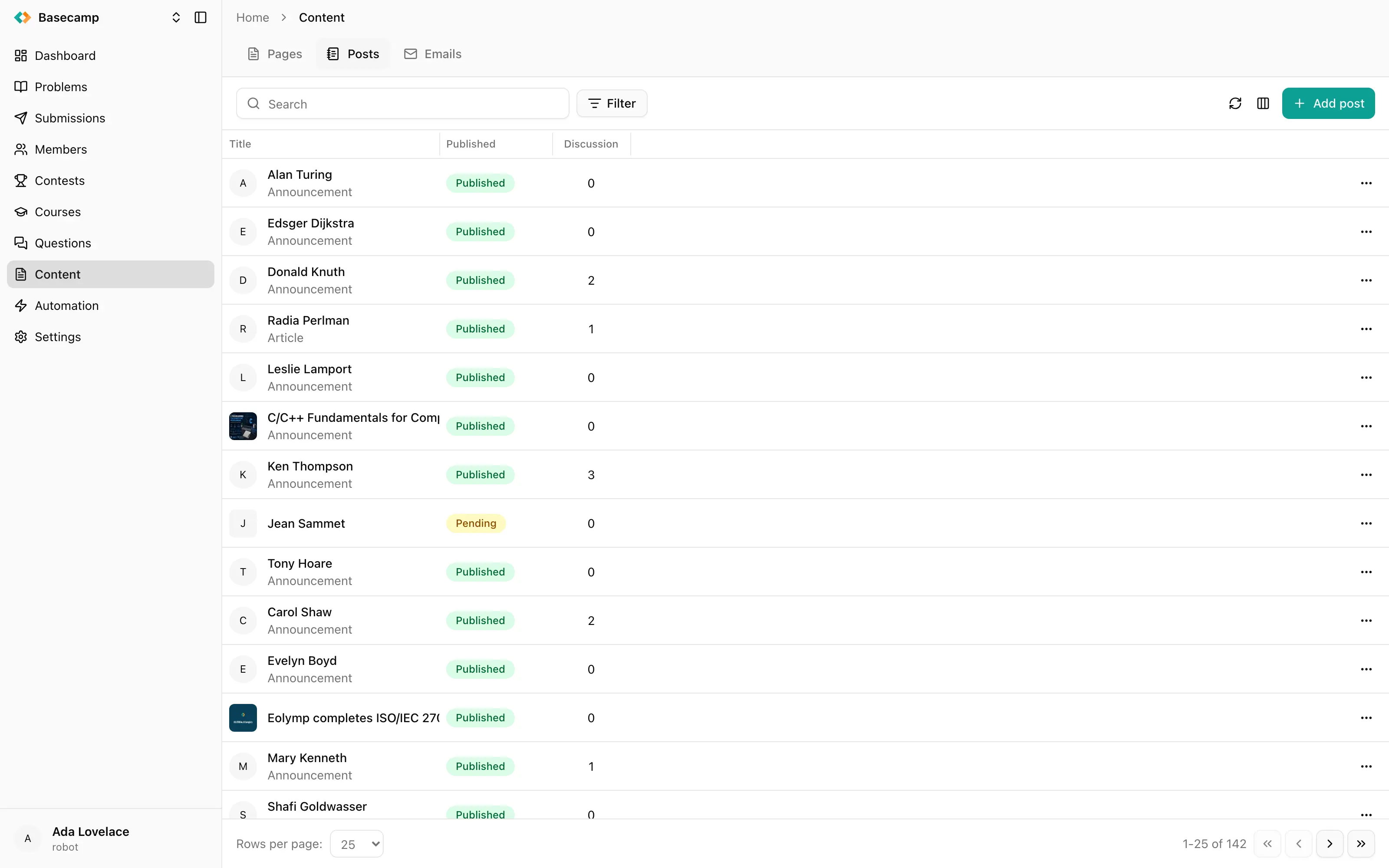
Fig 1. The Posts tab: each row shows the cover image, the title read out of the content, the post type and the number of comments.
A post has no title field
The title, the cover image and the excerpt in the listing are all read out of the content:
What | Taken from |
|---|---|
Title | The first level-1 heading ( |
Cover image | The first image in the content |
Excerpt | The first paragraph in the content |
A post with no level-1 heading is listed as "Untitled" in the console, which is nearly always a heading someone forgot rather than a post that wants no title.
What you can write in
Posts are written in Markdown or LaTeX. The rich text mode offered on pages is not available for posts.
The editor is the split screen used everywhere in Content: the form on the left, the rendered post on the right, refreshing about half a second after you stop typing. On a narrow screen the preview is behind a Preview button.
Labels are added one at a time, up to ten per post. Clearing them all saves the post as having no labels rather than leaving the previous set in place.
Publish, unpublish, delete
Action | What it does |
|---|---|
Publish | Clears the draft flag and stamps the publication date. Offered on drafts, and asks for confirmation. |
Unpublish | Returns the post to draft and clears its publication date. The content is untouched, so you can publish it again. |
Delete | Removes the post and every translation. Permanent. |
There is no scheduling. A post becomes visible when you publish it, and the publication date is the moment you do — there is no "publish at" field, so a post for Monday morning is published on Monday morning.
Whether a published post actually reaches readers also depends on your space's moderation setting, and publishing sets the post's moderation state. See Comments and moderation.
View in the header opens the post on the public site, and is only there while the post is public.
Letting members write posts
Members can be allowed to post themselves, in Settings → General → Discussions, with Members can create posts. Their posts arrive in the same list and go through the same moderation as yours. See Enable and moderate discussions.
Finding a post again
The list shows every post in the space, newest created first, and can be filtered by id, by draft, by featured, by moderation state, by type and by label. The search box searches the content of posts. Columns can be shown, hidden, resized and reordered.
 Apoye a Ucrania