
Printers
On-site printing lets contestants at a physical venue send a document to a printer in the room without having any network access of their own. You register the printers here, in Settings → Printers; a printer client running at the venue connects to Eolymp using the printer's secret, reports whether it is free, and receives jobs one at a time.
Two conditions gate the tab. Your plan must grant at least one printer, or the tab is hidden from everyone in the space — see Quotas and limits and Why a section is missing. And you need permission to configure the space (Space → Configure).
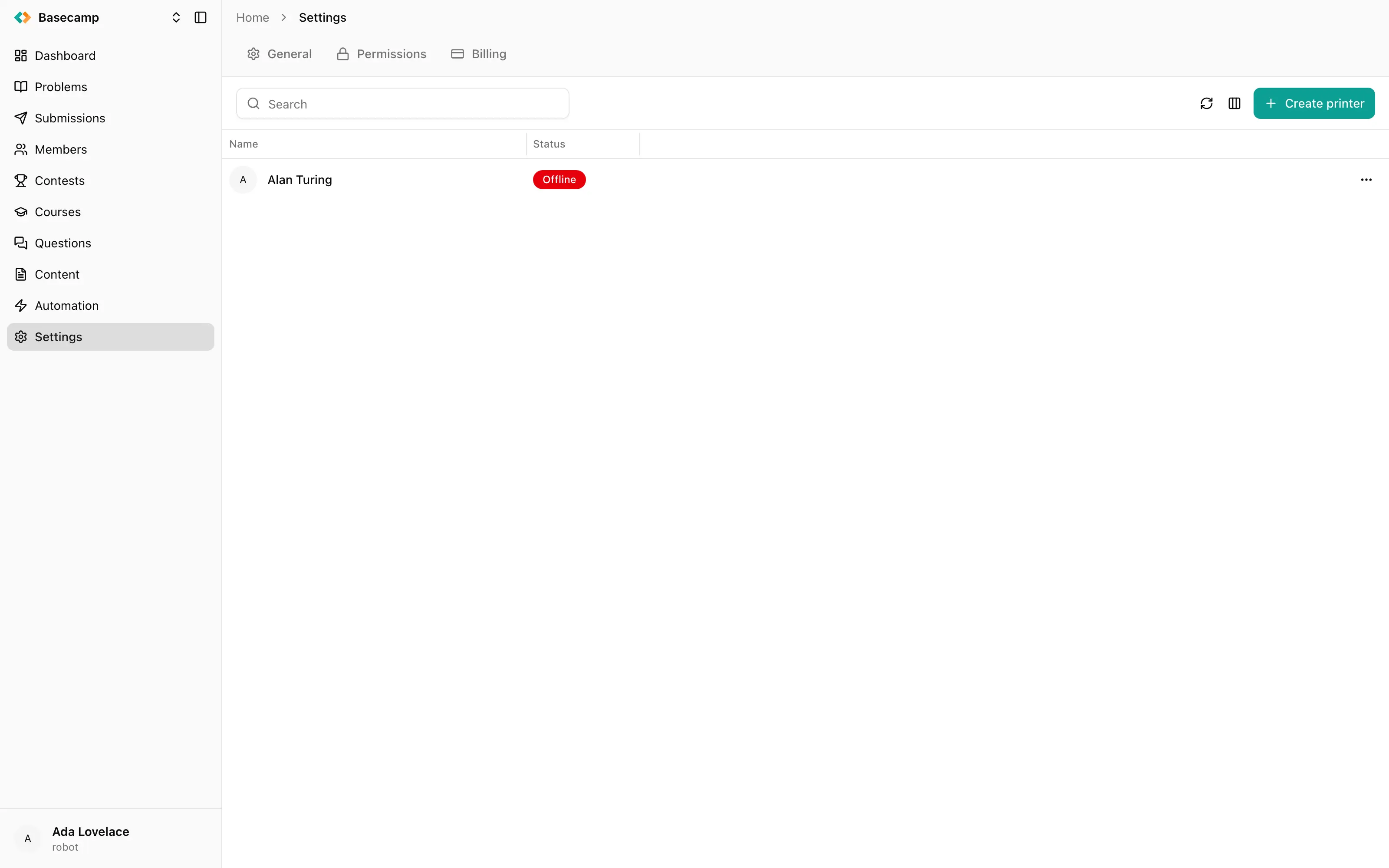
Fig 1. Registered printers with their current status.
Register a printer
Open Settings → Printers.
Click Create printer.
Give it a name. This is the label organisers and participants see, so name it after where it physically is — Hall A, Room 214 — not after its model.
Save.
A secret is generated for the printer at this point. It is not shown on creation: open the printer with Edit to read it.
Connect the printer client
The console does not talk to a printer directly. A printer client runs on a machine at the venue, next to the actual printer, and authenticates to Eolymp with that printer's secret. Once it connects, the printer's status in the console changes from Offline.
Treat the secret as a password. Anyone holding it can register as that printer and receive whatever contestants send to it.
What the statuses mean
Status | Meaning |
|---|---|
Offline | No client is connected. Nothing can be printed. |
Ready | A client is connected and idle. |
Busy | The client is working on a job. |
A printer is handed work only while it reports Ready, and only one job at a time — the next job goes out after the client reports the previous one finished. A printer left Busy because of a paper jam or a stopped client will not pick up anything else until the client reports in again.
The most common reason a printer looks dead is simply that the client at the venue isn't running. Check that before anything else on the day.
Rename or remove a printer
Edit renames a printer and shows its secret, which is read-only. Delete removes it after a confirmation quoting the printer's name.
Deleting a printer that a contest is bound to leaves that contest with nowhere to print, so check the contests using it first.
Using a printer in a contest
Registering a printer does not by itself let anyone print. Each contest is bound to one printer in its own settings, and that field only appears when your plan grants printers. See Printing at an onsite contest.
 Stand with Ukraine