
Test cases
A test is an input and an answer. When someone submits a solution, the system runs their program once per test, feeds it the input, captures what the program printed, and asks the checker whether that output is right for this input. Passing a test awards the test's score.
Tests live on the problem's Testing tab, under Tests, grouped by testset. Every test belongs to exactly one testset, and a problem needs at least one testset before it can have tests. You need permission to write problems.
Add a test
Open Problems, select the problem, and go to the Testing tab.
If the problem has no testset yet, click Add testset and save one.
Click Add test.
Fill in the fields and save.
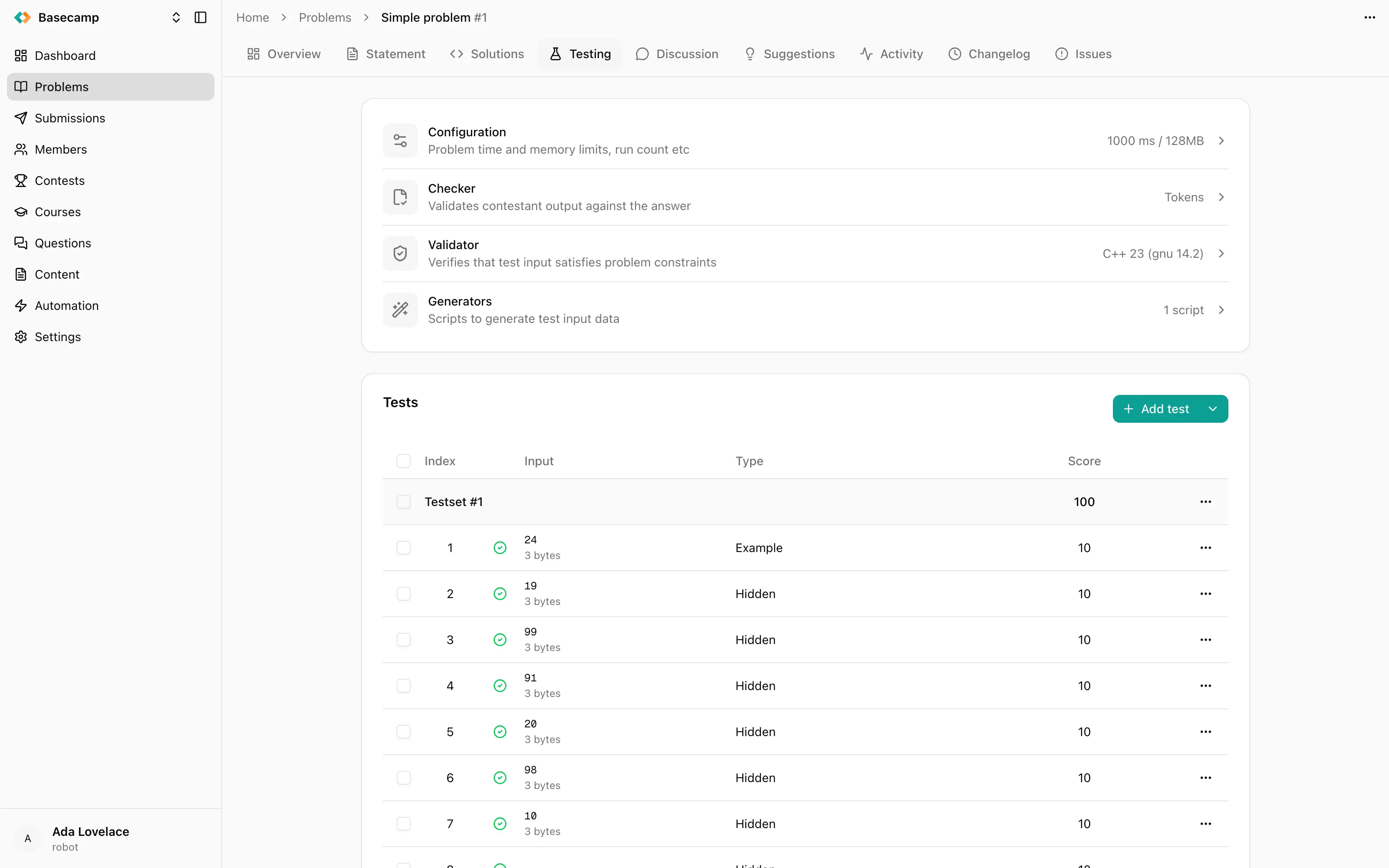
Fig 1. The test editor: testset, index, score, example flag, and the input and answer.
Fields
Testset — which testset the test belongs to. Changing it moves the test.
Index — the test's position within its testset. Indices are assigned explicitly, so deleting a test leaves a gap in the numbering rather than renumbering everything after it.
Score — points awarded for passing this test. What the testset does with those points depends on its scoring mode.
Example — whether the test is shown as an example in the statement.
Input and Answer — the data itself.
Supplying input and answer data
Each of Input and Answer is supplied in one of two ways, chosen from the same control:
Test data — typed in place, or uploaded as a file.
A generator — pick a generator by name and give it arguments.
They are independent, so a common arrangement is uploaded input with the answer computed by the author's solution acting as an answer generator.
Switching a field to a generator marks the test for regeneration. The editor shows Generation Pending until you save, and offers Reset to go back to the previous generator.
Example tests and what the statement shows
A test flagged Example is rendered in the statement's Examples section as an input/output pair, numbered when there is more than one. You do not write the examples into the statement text.
Example tests also get two extra fields, Override input shown in statement and Override answer shown in statement. They change what the statement displays without touching the data the judge actually uses. This exists for interactive problems, where the real input is a script for the interactor and would mean nothing to a participant: the judge keeps running the script, and the statement shows a readable sample dialogue instead.
Test status
The tests table shows an icon per test:
Status | Meaning |
|---|---|
Ready | Data generated and validated. |
Pending | Awaiting generation. |
Invalid | Data could not be generated, or failed validation. Hover to see why. |
An invalid test also shows the generation error at the top of its editor. Validation here is the problem's validator, if it has one.
The input preview column shows the first line of the input and its size for uploaded or inline data, and the generator name followed by its arguments for generated data. A secret test shows a Secret badge instead and never reveals its input or answer; opening one for editing asks you to Override, after which the form behaves as a fresh test whose data you must supply again.
Generated data is produced in the background, and a test stays Pending until generation and validation succeed. If a submission arrives before that, generation happens inline as part of judging that submission — worth remembering if you are editing tests during a running contest.
Change or delete several tests at once
Select tests with the row checkboxes, the checkbox on a testset's group header, or the one in the table header for all of them. A bulk bar appears with two actions: Set score, which writes one score to every selected test, and Delete.
Individual tests are edited by clicking the row, and deleted from the row menu.
Import test files in bulk
Import tests uploads test files by the folder-load: drag them onto the dialog or pick them from disk, up to 1000 files at a time. They all go into the last testset of the problem, so arrange your testsets first.
File names carry the pairing. Each name must be a number, optionally followed by a recognised extension:
Role | Accepted names |
|---|---|
Input |
|
Answer |
|
The number is the test index, and input and answer with the same number are paired. Files that match nothing are skipped, with a message naming the file.
Before anything is written, the dialog lists what will happen per index — a plus icon for a test that will be created, a swap icon for one that will be replaced — along with each file's upload state. Save changes applies them behind a progress bar: existing tests are updated in place, missing ones are created.
 Stand with Ukraine