
Automation
Automation makes your space react to events on its own. You write rules, and each rule runs whenever something happens — a submission is judged, a contest is finalized, a new member joins — or on a schedule, every hour or every day. Instead of watching for those moments and acting by hand, you describe once what should happen.
You manage rules from the Automation section of the console. Seeing the section needs permission to read automation and a plan that includes automation rules; creating, editing, deleting and running rules needs permission to change automation.
What a rule is
A rule has three parts:
Trigger — the event the rule listens for. Exactly one per rule. Changing it changes which fields you can build conditions from and which data the actions receive.
Conditions — zero or more filters on the event. Every top-level condition must match, and a rule with no conditions acts on every event of its trigger.
Actions — what the rule does. One or more, run in the order you list them.
Each rule also has a Name, which identifies it in the list and in the logs. Rules with the Contest action, Member action or Problem action trigger take a Label as well: it is the caption of the button that runs the rule from a contest, member or problem page, and the name is used if you leave it empty.
Saving validates the rule. A rule with no name, no trigger, or a script that does not parse is rejected, and the error is shown on the field that caused it. A script is only checked for syntax at this point; it is not run.
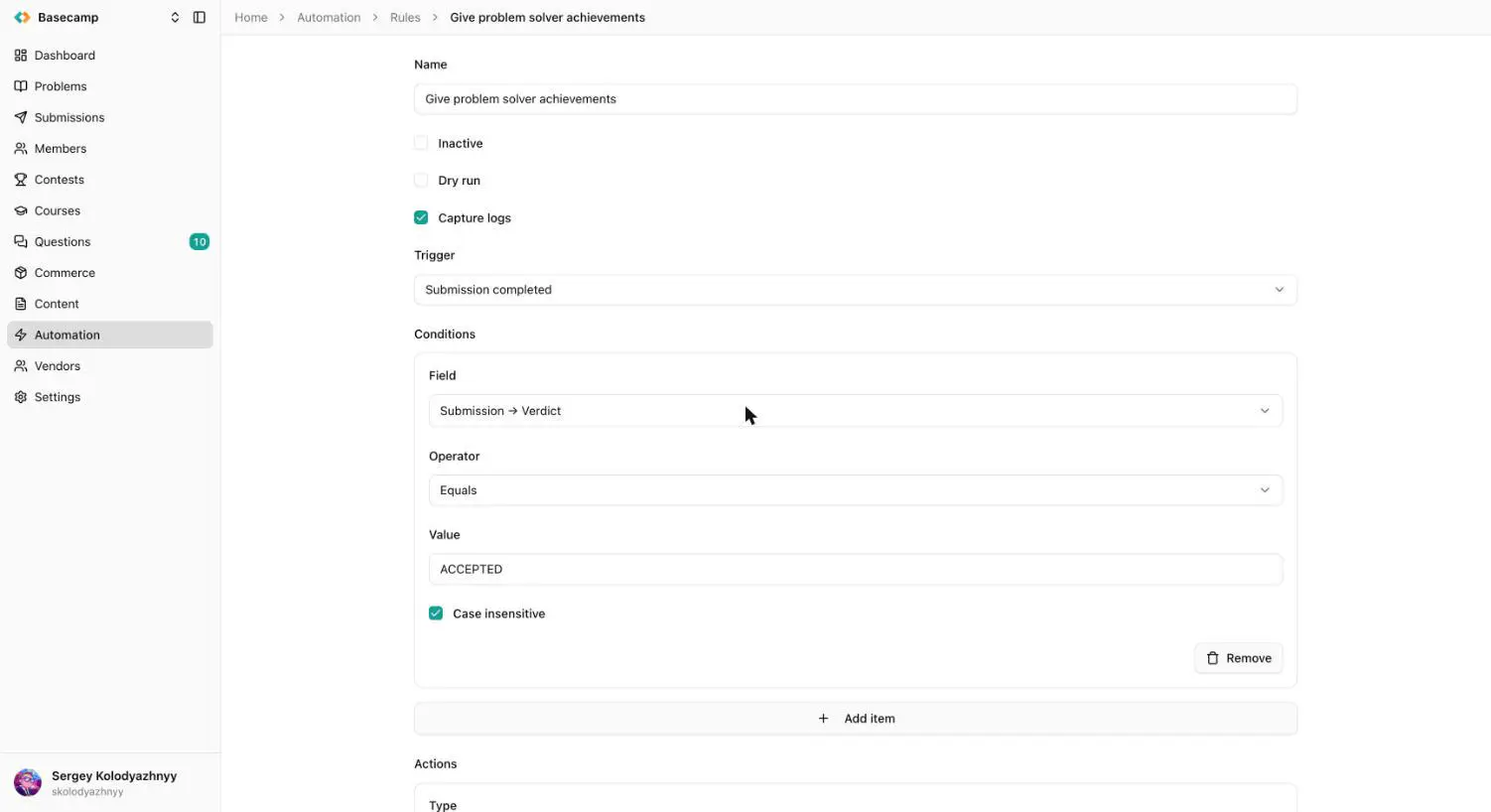
Fig 1. Editing a rule — its trigger, conditions, and action.
How rules run
When an event happens, every active rule bound to that trigger is evaluated independently against it. There is no priority and no ordering between rules, and the order they run in is not defined. Ordering exists only inside a rule, across its actions.
A rule whose conditions do not match does nothing at all: no log entry, and no change to its Executions count. In the console that looks exactly like an event that never happened, which is why a rule that seems dead is usually a rule whose conditions never matched. See Why a rule did not run.
There are no retries. If an action fails, the failure is recorded and the run ends — the event is not delivered again and the action is not repeated. Rules are best written so that running them twice is harmless; the reference argument on the achievement, credit and email functions exists for exactly that.
The two kinds of action
A scripted action is a short program in Starlark that calls platform functions directly. It suits fixed steps that must run identically every time — granting an achievement, moving a member into a group, setting a medal. A script is bounded at 10 seconds. See Automation scripts.
An agentic action gives an AI agent your instructions in plain language, the event data, and a set of tools you choose. The agent decides which tools to call and in what order, which suits work that needs judgement or varies case by case — reading a contest question and drafting a reply, for example. The agent can only call the tools you selected, and every call it makes is recorded in the log with its arguments and result. An agentic run may take up to 10 minutes.
A rule can combine both kinds.
Running a rule by hand
Every rule can be run on demand from the Trigger entry in its row menu. The dialog asks for the entities the trigger needs — a contest, a member, a submission id — and runs the rule against them immediately. The Contest action, Member action and Problem action triggers exist only for this.
A manual run enforces the same conditions as an automatic one, but reports the outcome: if the conditions do not match, the run is refused with an error rather than silently doing nothing. That makes the Trigger dialog the most reliable way to find out whether a rule's conditions really match a given entity. The referenced entity has to be in the state the trigger describes — a submission that has been judged, a contest that is finalized — or the run is refused too.
An inactive rule can still be run by hand. Manual runs count towards the monthly execution limit and increase the Executions count.
Rules with the Contest action, Member action or Problem action trigger also appear as entries in the action menu of a contest, member or problem page, so staff can run them from the page the operation is about. Only rules that are active and whose conditions match that particular contest, member or problem are listed, and the entry is captioned with the rule's Label. Choosing it asks for confirmation, then runs the rule.
Rules that call other rules
A rule can start another rule, as a script with eolymp_rules_trigger or from an agentic action with the rule-triggering tool. The started rule runs as if it had been triggered by hand, with its own conditions and its own log. Nothing stops two rules from starting each other in a loop; the monthly execution limit is what ends one, so check a chain like that with Dry run first.
Dry run and Inactive
Two switches on the rule itself decide how it runs:
Inactive turns the rule off. Events and schedules no longer fire it and it disappears from the action menus on contest, member and problem pages. You can still run it by hand.
Dry run makes the rule fire and its actions run, but nothing is written. The first operation that would change something is recorded in the log as Dry run and the action stops there — so a dry run shows what the first write would have been, not the whole sequence. Reading operations work normally.
A rule can be inactive and set to dry run at the same time; the status shown in the list is Inactive, because inactive wins.
The Rules and Logs tabs
Rules lists every rule in the space with its trigger, its status (Active, Dry run or Inactive), how many times it has run since it was created, and when it was created. You can filter by id, by trigger, and by whether the rule is active. Clicking a row opens the editor; the row menu also offers Trigger, See logs and Delete. Deleting a rule is permanent.
Logs lists runs, newest first, with the rule, the trigger, the status (Pending, Executing, Complete or Error) and the time it fired. Every run is recorded: every message an action emitted and every operation it performed, with arguments, results and errors. A run that is still going can be opened and read as it progresses, including the text an agentic action writes. A rule whose conditions did not match leaves no entry, because it did not run. Log entries are kept for 7 days.
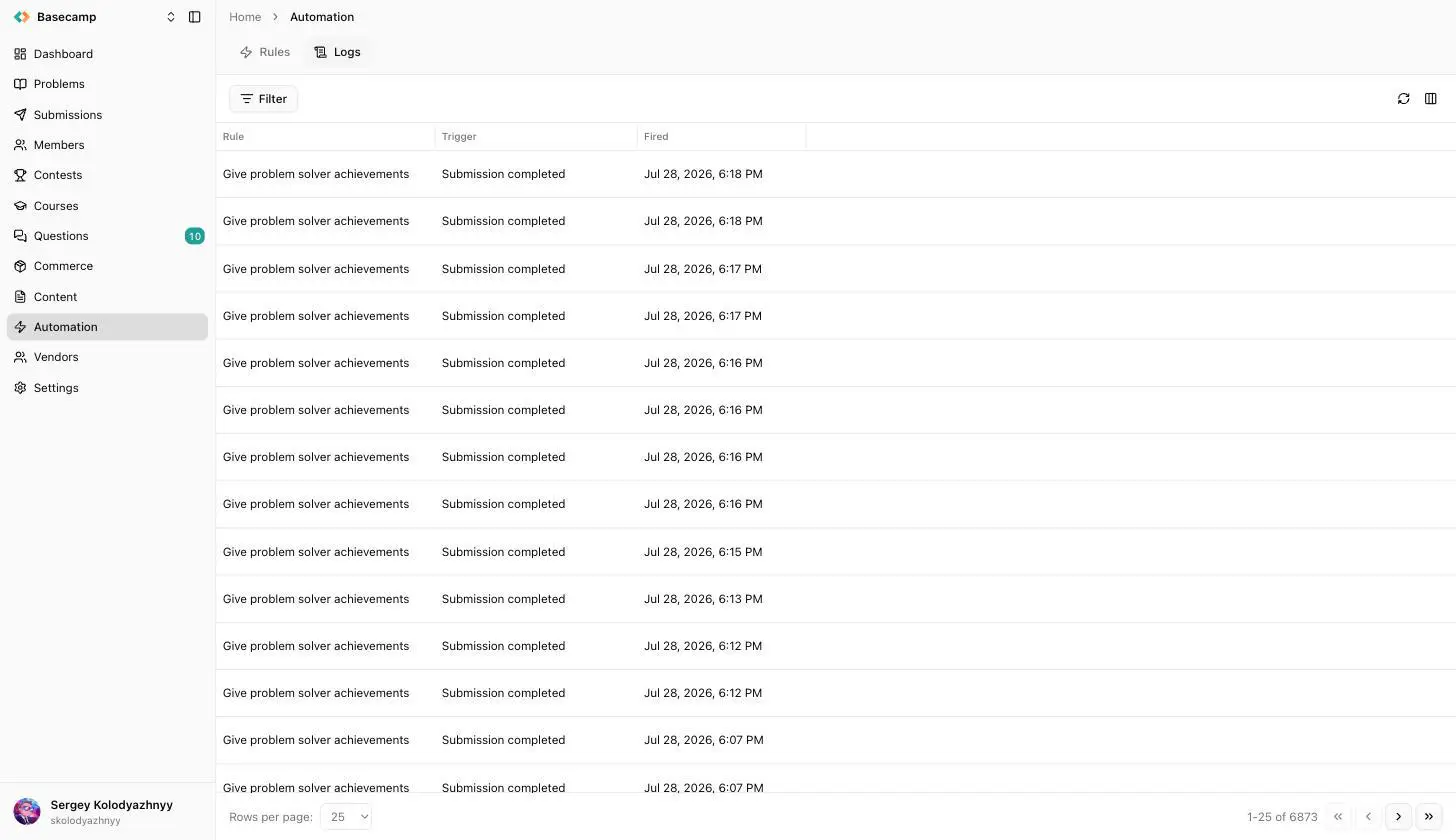
Fig 2. The Logs tab — every recorded run, with its trigger and time. Open an entry to see what each action did.
What your plan allows
Two plan limits apply.
Rules per space. A plan that allows zero rules disables automation altogether and the Automation item is hidden from the sidebar. Once a space holds as many rules as its plan allows, creating another is refused with a quota error; existing rules keep working, and editing and deleting them are unaffected.
Executions per month. Every run counts — automatic, manual and dry runs alike — and the count is measured over your space's billing period rather than a calendar month. When the limit is reached, further runs are refused: event processing stops for the whole space until the period rolls over, and a manual trigger fails with a quota error. Execution records are kept for three months.
Where the detail lives
Triggers and conditions — every trigger, what fires it, the data it makes available, and how conditions are built.
Automation scripts — the Starlark language, its limits, every function, and the objects a script can read.
Why a rule did not run — what to check when a rule does nothing, and the condition trap that silently suppresses a rule.
 Stand with Ukraine