
Create a contest
Contests are created from the Contests section of the console. The form asks for six things, the contest is created immediately in Scheduled status, and the console opens it so you can add problems and participants.
You need permission to write contests. Creating is also limited by your plan's quotas for active contests and contests per month; when either is used up, the console refuses to create another one. The counters above the contest list show where you stand.
Create the contest
Open the console and select your space.
Go to Contests.
Click Add contest.
Fill in the form:
Name — what the contest is called, on the list and on its public page.
Format — IOI or ICPC. Choose carefully: the format is locked as soon as the first submission is made.
Visibility — Public, Unlisted or Private. See Contests for what each one lets people do.
Participation mode — Online or Virtual.
Start time and End time.
Duration — virtual contests only: how long one participant has once they start.
Click Create.
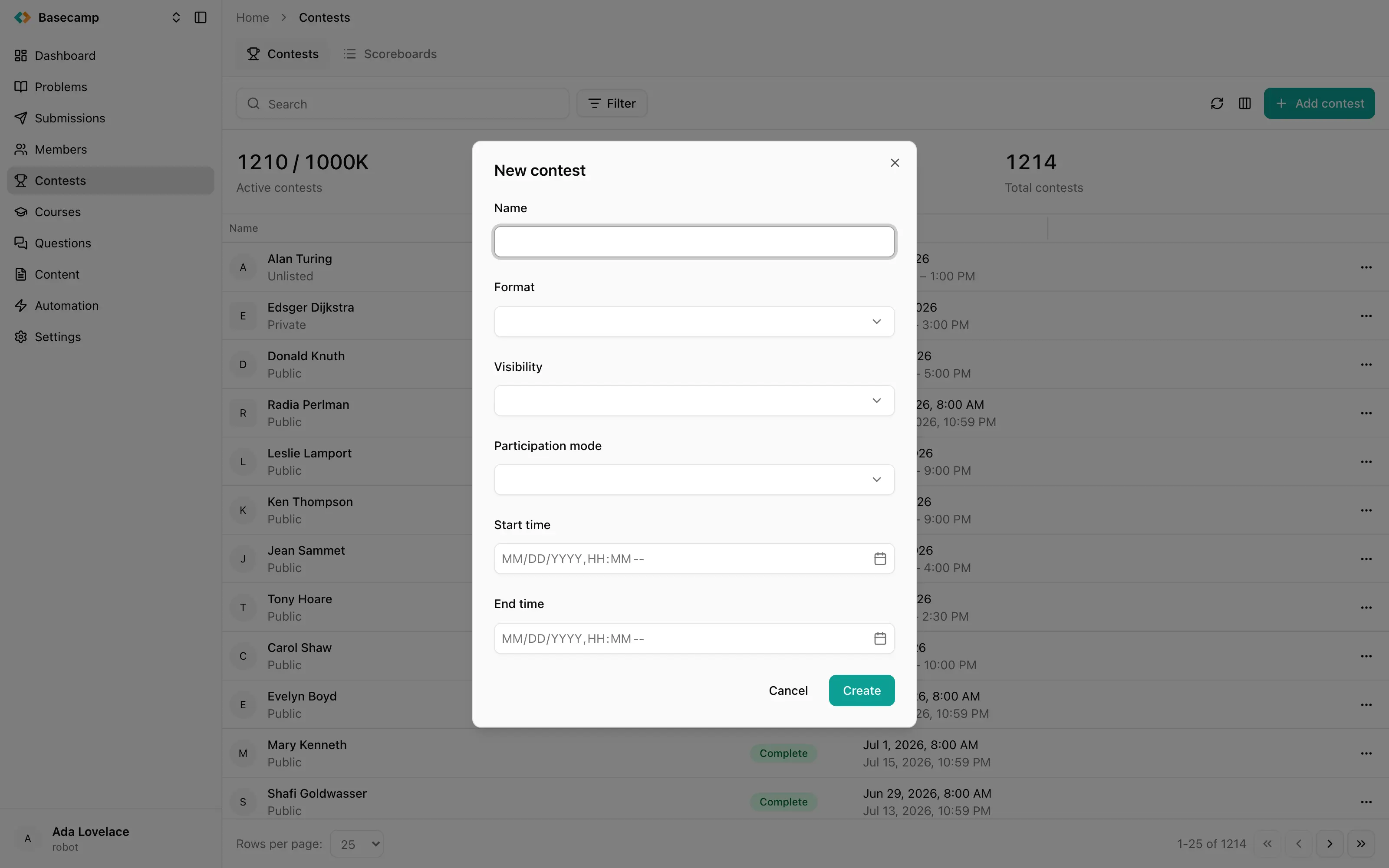
Fig 1. The contest creation form.
The contest is created Scheduled and opens on its Overview tab. It will move to Open by itself when the start time passes; you don't have to start it by hand.
There is no draft status, so a contest you are still preparing is simply one that is Private or Unlisted and has not started. Make it Public when it's ready to be announced.
Then
Add problems from the space's library.
Let people join, or add them yourself.
Configure the scoreboard — who may see it, and whether it freezes near the end.
Write an overview page describing the rules.
Anything you got wrong in the form can be changed afterwards on the contest's Settings tab, except the format once a submission exists.
Copy an existing contest
A contest you have already set up is usually a better starting point than an empty form — a weekly round, or last year's olympiad.
Go to Contests and open the row menu of the contest you want to copy, or open the contest and use Copy in its header.
Give the copy a name. It is pre-filled with
<name> (Copy).Choose its visibility. It defaults to Private.
Choose which parts to carry over: Settings, Problems, Participants, Permissions.
Confirm.
The copy is created in the same space and opens straight away. Results of past participation are never carried over — copied participants start clean, with no submissions and no score.
Check the copy's schedule on its Settings tab before you announce it.
 Ukrayna ilə durun