
Access management
Settings → Permissions is the list of people who may administer your space and what each of them is allowed to do. Access is built out of three things:
A principal is an Eolymp user you have given administrative access to the space. A principal has a role and a set of permissions covering the whole space.
A policy is an extra grant attached to a principal and limited to one resource — the whole space, a single problem, or a single contest. A principal can have as many policies as you like.
An action is one atomic permission, such as Contests → Write. Principals and policies both hold a list of allowed actions, or the Allow all actions flag instead of a list.
Viewing this screen needs Permissions → Read; changing anything on it needs Permissions → Write.
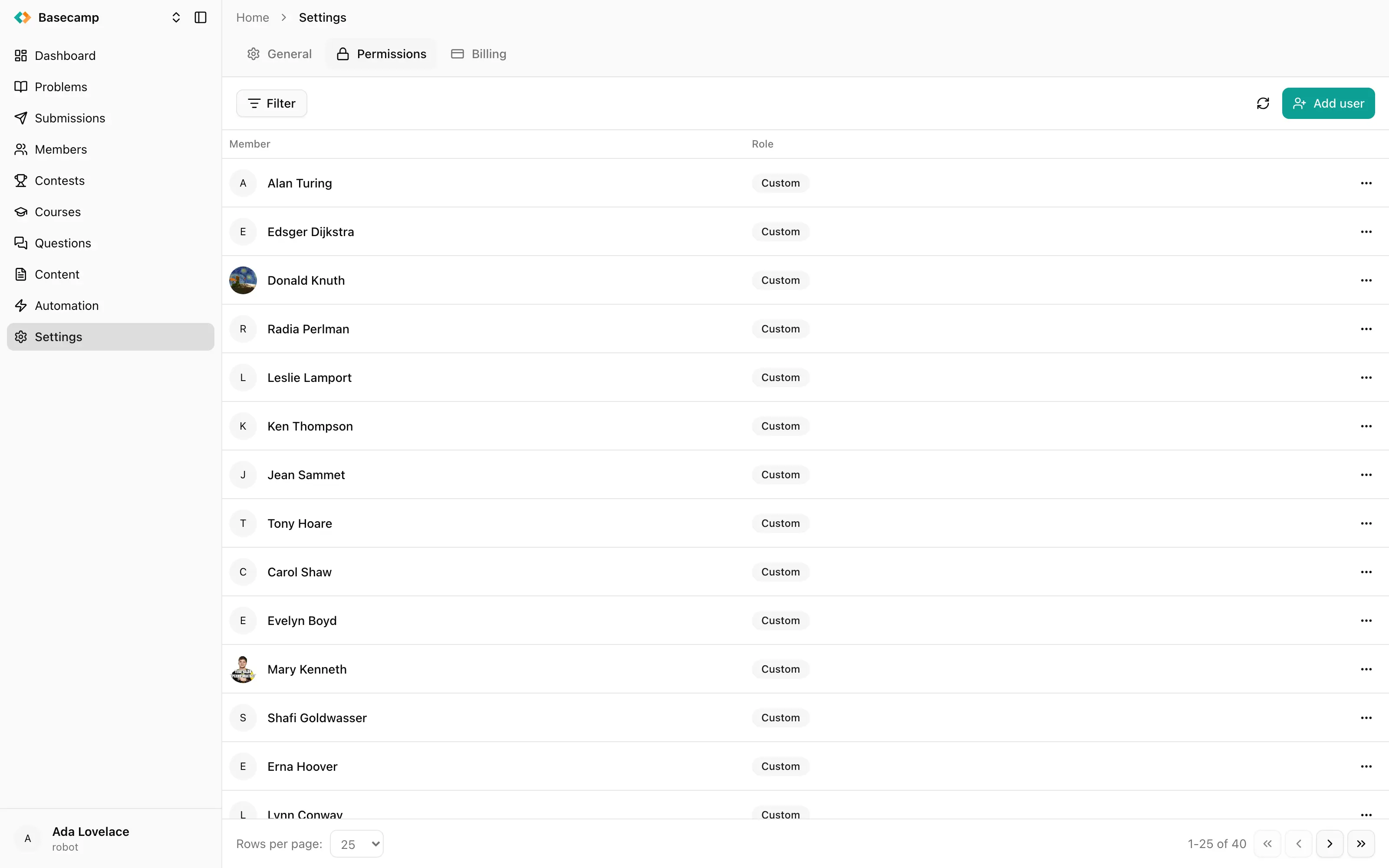
Fig 1. Administrators of a space, each with a role badge.
Grants only ever add
The permissions someone has on a particular problem or contest are their space-level permissions plus every policy that covers it. There is nothing that takes a permission away: no deny rules, no precedence, no ordering. If a space-level grant lets someone read every problem, a policy on one problem cannot make that one problem invisible to them.
The practical consequence is that you narrow access by granting less, not by adding an exception. Someone who should only touch one contest gets no space-level permissions at all and a single policy on that contest. Removing access means removing the grant that provides it — and if the same permission arrives from two places, removing one of them changes nothing.
Roles
Role | What it means |
|---|---|
Owner | Full access to everything in the space. The permission checkboxes are locked on, and no individual list is stored. |
Custom | Exactly the permissions that are ticked, and nothing else. |
Owner is not a bundle of permissions that happens to include all of them today; it is a standing grant of everything, including permissions added to the platform later. Whoever creates a space is its owner.
Keep at least one owner. Access is granted by people who hold Permissions → Write, so a space where nobody holds it can no longer have its access changed from the console.
Scope
A policy's Scope decides both what it covers and which permissions it can contain. The form shows only the groups that make sense for the scope:
Scope | Permission groups offered |
|---|---|
Space | All of them. |
Problem | Problems. |
Contest | Contests, Tickets, Pages. |
Choosing Problem or Contest adds a picker for the specific object the policy applies to. There is no scope for a group of problems or a series of contests: to cover five contests you create five policies.
Space-scoped policies and the principal's own space-level permissions do the same job. Use the principal's permissions for someone's general standing in the space, and policies for the exceptions.
Implied permissions
Two grants imply more than they say:
Read access to at least one object of a kind automatically lets someone list that kind. This is why a person with a policy on a single contest can open the Contests screen at all — they see the one contest their policy covers. It is not shown in the form and cannot be set by hand.
Contests → Write already includes admitting participants. Contests → Admit exists so a registration desk can be given admission and nothing else.
What each permission means individually is in Permission reference.
Administrators and members are different people
A principal administers the space from the console. A member is someone who uses the public site — solves problems, enters contests, takes courses. The two lists are separate, and granting someone administrative access does not add them as a member, nor does it consume a seat on your subscription. See Members.
The same person can of course be both, in which case they hold a principal record and a member record and consume a seat like any other member.
The principal page
Clicking someone in the list opens their own page, with their space-level permissions shown as chips and their policies listed underneath as Additional access.
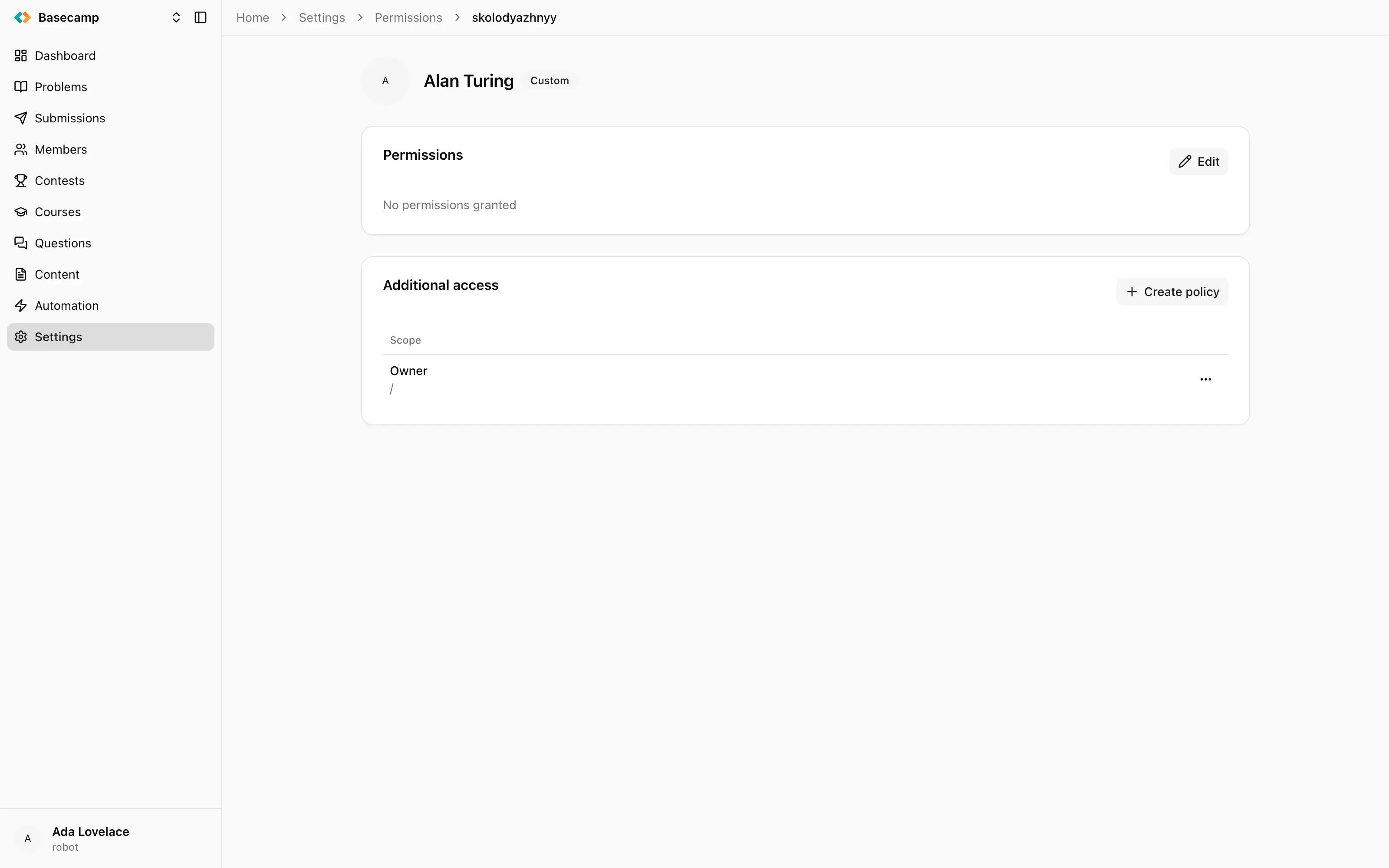
Fig 2. Space-level permissions above, policies below.
Each policy is described in plain language derived from its scope and size — "Full access to everything", "Allow 3 actions in contest …", "Full access to problem …" — with the resource it applies to on the line below. A policy you give a Description shows that text instead, which is worth doing once someone has more than two or three.
Owners show "Full access to everything" rather than a list of chips, and a principal with nothing granted shows "No permissions granted" — a real state, and the right starting point for someone whose access comes entirely from policies.
What administrators see
The console reads your permissions when you enter a space and hides what you cannot use: sidebar sections, tabs, buttons and whole cards. Two administrators of the same space can therefore see quite different consoles, and an action nobody granted you is absent rather than refused. Why a section is missing works through the cases.
How many administrators you can have
The number of principals a space may hold is capped by its plan, as the administrator accounts quota — see Quotas and limits. Policies are not capped; the limit is on people, not on grants.
Doing it
Adding someone, and what to tick for the common jobs, is in Give someone the right access.
 Apoye a Ucrania