
Import from Polygon
A problem prepared in Polygon is imported into your space from its package link. Most of the work happens on the Polygon side: the package has to exist, and the eolymp user has to be allowed to download it.
If you have the package as a file, you can also upload it with Import from file and skip the access steps; see Import problems. A problem imported from a file keeps that file as its origin, so Synchronize re-imports the same file rather than a newer package from Polygon.
You need permission to write problems in the space, and full write access to the problem in Polygon if you still have to create the package.
1. Build a package in Polygon
The package is the archive holding the statement, checkers, interactors and tests.
Open the problem in Polygon and go to its Packages tab.
If a package is already listed for the latest version, there is nothing to do here.
Otherwise click Create package: Standard at the top of the screen and wait for it to build.
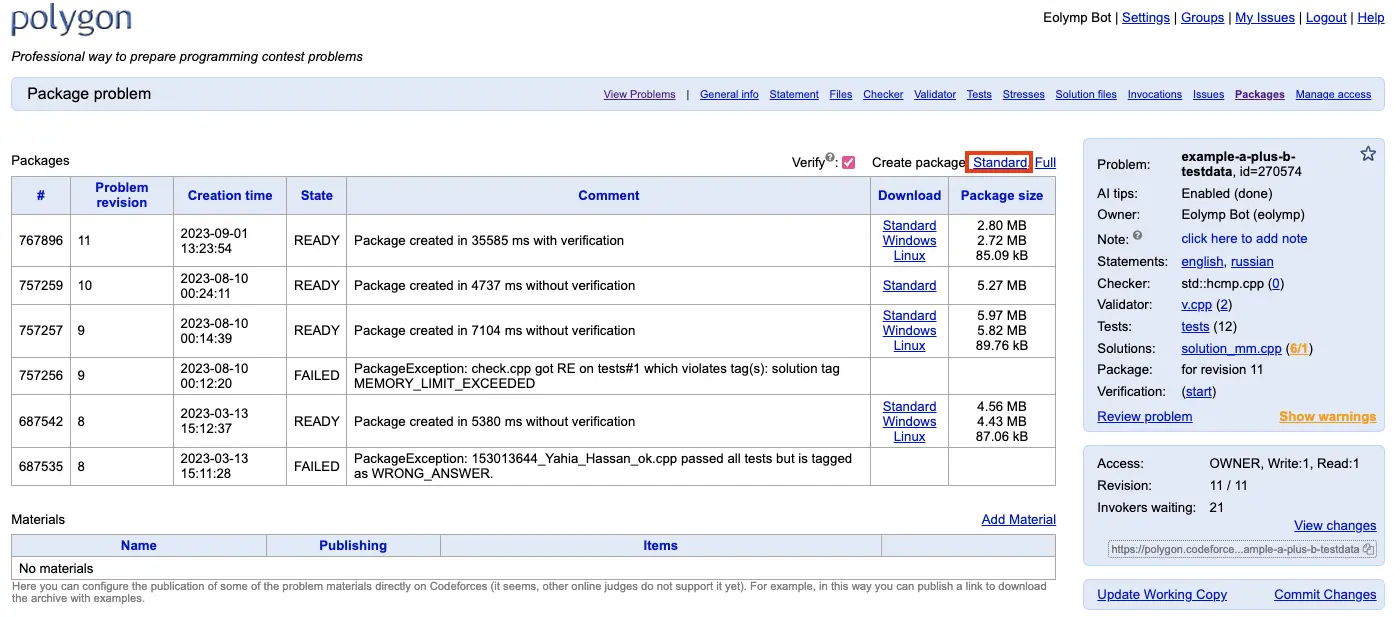
Fig 1. Creating a standard package in Polygon.
The standard package does not carry pre-generated test data; Eolymp runs the problem's generators itself to produce it. If you would rather import the tests exactly as Polygon generated them, build a Full package instead, which produces the Windows package, and append ?type=windows to the problem link when you import it.
2. Give eolymp read access
Eolymp downloads the archive as a Polygon user, so that user needs access to the problem.
Open the problem's Manage access page in Polygon.
Add the user
eolympwith READ access.
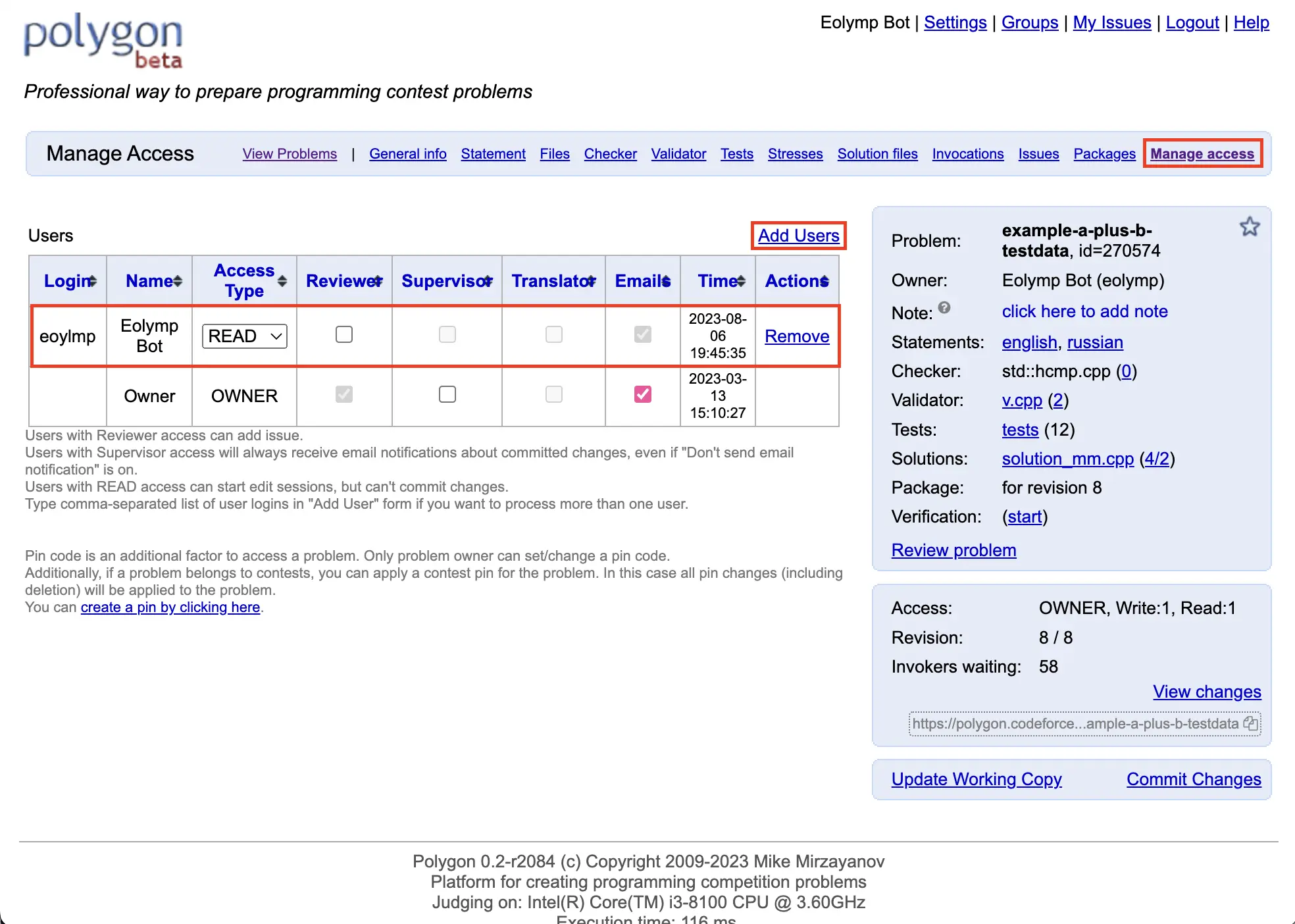
Fig 2. Granting READ access to the eolymp user.
Skipping this step is the usual reason an import fails immediately.
3. Copy the problem link
On the problem page in Polygon, copy the link shown on the right-hand side of the interface.
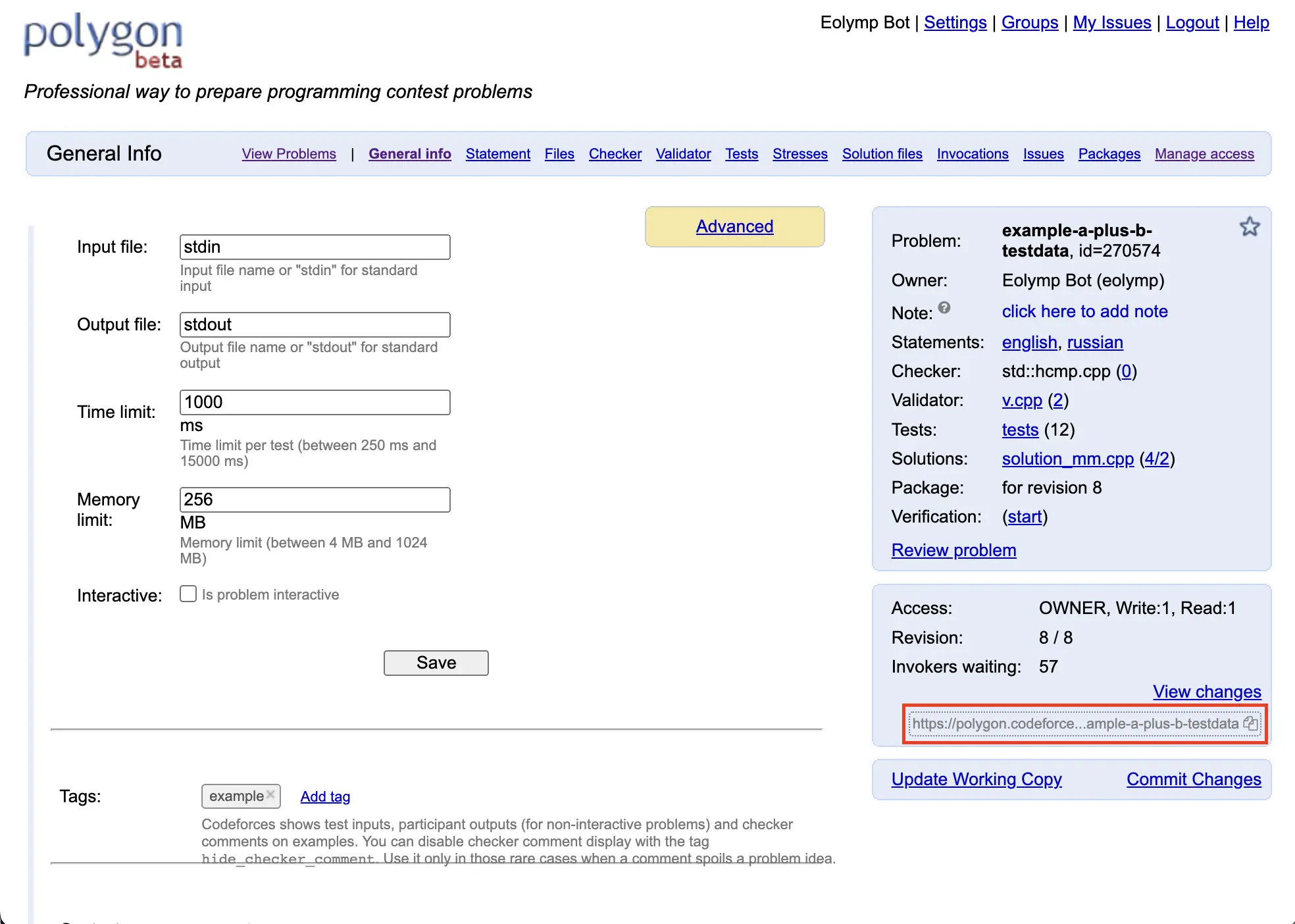
Fig 3. Where to find the problem link.
4. Import it
Open the console and switch to the space the problem should go into.
Go to Problems.
Click Import from Polygon.
Paste the link into Polygon link and confirm.
The problem is created straight away and its content is copied in the background — this can take a while for a problem with a lot of test data. Follow it on the problem's Activity tab, or in Background tasks. The problem starts unpublished.
Keeping it up to date
Synchronize, in the problem's row menu or its header, pulls the package again. Build a new package in Polygon first, or you will re-import the version you already have.
Synchronizing replaces your copy with the upstream one: anything you changed in the console is overwritten and cannot be recovered. See Import problems.
 Apoye a Ucrania