
Give someone the right access
This page is the set of answers to "what do I tick to make this person a judge?" — a worked list of the common jobs and the permissions each one needs. The model behind them is in Access management, and every individual permission is listed in Permission reference.
You need Permissions → Write to do any of this. The person you are granting access to needs an Eolymp account already; you cannot create one for them from here. Your plan also caps how many administrators a space may have — see Quotas and limits.
Add someone to the space
Open Settings → Permissions.
Click Add user and pick the Eolymp user.
Choose the role. Owner grants everything and locks the checkboxes on; Custom grants exactly what you tick.
Tick the space-level permissions from one of the recipes below.
Save.
The console opens the new person's page. The space now appears in their own console — anyone holding any permission in a space sees it in their space list.
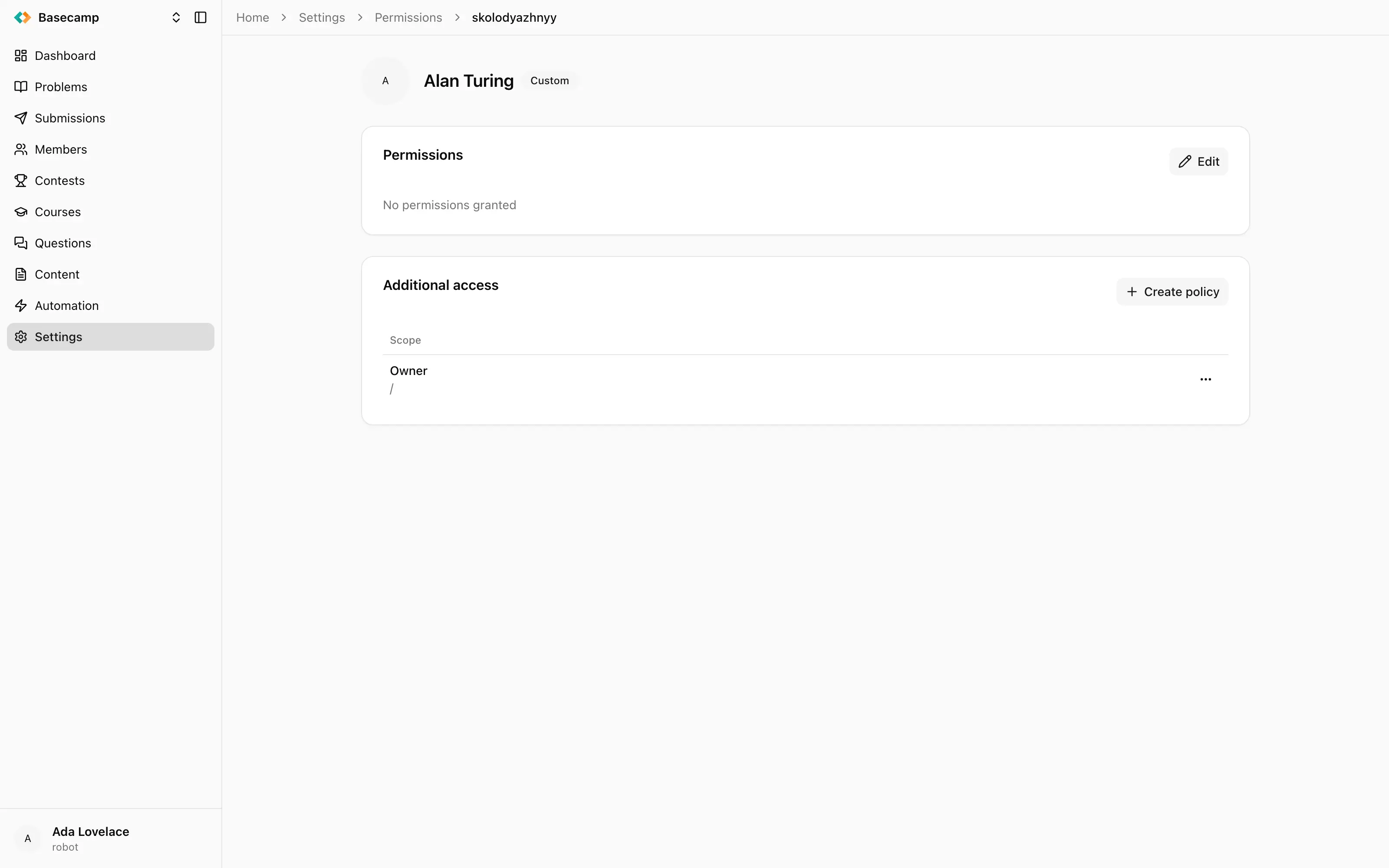
Fig 1. The permission grid, grouped by area.
Restrict someone to one contest or problem
Add the user with role Custom and no space-level permissions ticked.
On their page, click Create policy.
Set Scope to Contest or Problem and pick the object.
Give the policy a Description — you will thank yourself when there are six of them.
Tick the permissions the policy should grant, or Allow all actions for everything on that one object.
Save.
Repeat for each object. A policy covers exactly one contest or one problem, so five contests need five policies.
Recipes
Judge for one contest
No space-level permissions. One policy scoped to that contest granting Contests → Read, Tickets → Read and Write, and Pages → Read.
They see that contest and nothing else in the space, can read and answer questions from its participants, and can read its pages.
Judge for every contest
Space-level Contests → Read, Tickets → Read and Write, and Scoreboards → Read.
Give this to a standing jury that works across all your competitions. It is read-only on the contests themselves: they can answer questions and watch the standings, but not change a contest.
Problem setter
Space-level Problems → Read, Write and Testing.
Testing is the one people forget. Without it a setter can write a statement but cannot add tests, upload a checker or run a reference solution, which is most of the work.
Add Contests → Read if they need to see where their problems are used.
Problem setter for one problem
No space-level permissions, plus a policy scoped to that problem granting Problems → Read, Write and Testing. Use this for an external author writing a single task.
Registration desk
Space-level Members → Read and Contests → Admit.
Admit lets someone let people into a contest without being able to change the contest itself — the right grant for a desk at the door on the day.
Read-only observer
Space-level Read in Space, Problems, Contests and Scoreboards, and nothing else.
This is what to give a guest coach, an inspector or a colleague who needs to see how something is set up. Every screen they can open is missing the buttons that change anything.
Billing manager
Space-level Billing → Read and Write, plus Space → Read so the console is navigable at all.
They see the plan, seats, quota and invoices, and can change the subscription. They see nothing else — no problems, no contests, no members.
Teacher who enrols students
Space-level Courses → Read, Write and Assign, and Members → Read.
Read the warning below before granting only two of the three Courses permissions.
Adding students to a course needs Courses → Assign, but the buttons for managing students appear only for someone who also has Courses → Write. Granted Assign alone, a teacher never sees the buttons; granted Write alone, they see the buttons and adding a student fails. Grant Read, Write and Assign together and enrolment works.
Note what this costs: Courses → Write also lets them edit the course itself — its modules, materials and assignments. If a teacher must not be able to change course content, there is currently no combination that lets them enrol students and nothing else, so enrol the students yourself instead. See Enrol students.
Taking access away
Delete on an administrator removes their role, their permissions and all of their policies in one step, and the confirmation says so. There is no way to suspend someone's access temporarily; edit their permissions down, or remove them and add them again later.
Because grants only add, check whether the permission you are removing also arrives from a policy. Clearing a checkbox on the principal changes nothing if a space-scoped policy grants the same thing.
 Stand with Ukraine