
Violations
A violation is a record that a participant may have broken the rules of a contest — a solution copied from someone else, code the participant did not write, or a way of working through the round that does not look like solving problems unaided.
Eolymp can check a whole contest and file what it finds, and you can also report a violation yourself. Either way a violation is only a record. It is filed as Pending and waits for a jury to confirm or dismiss it: nothing is decided automatically, no one is disqualified automatically, and the scoreboard is not affected. Violations are visible only in the console, and participants are not notified.
Every contest has a Violations tab, alongside Participants and Submissions.
Checking a contest
Open the console and select your space.
Go to Contests and open the contest.
Open the Violations tab and choose Check from the menu next to Report.
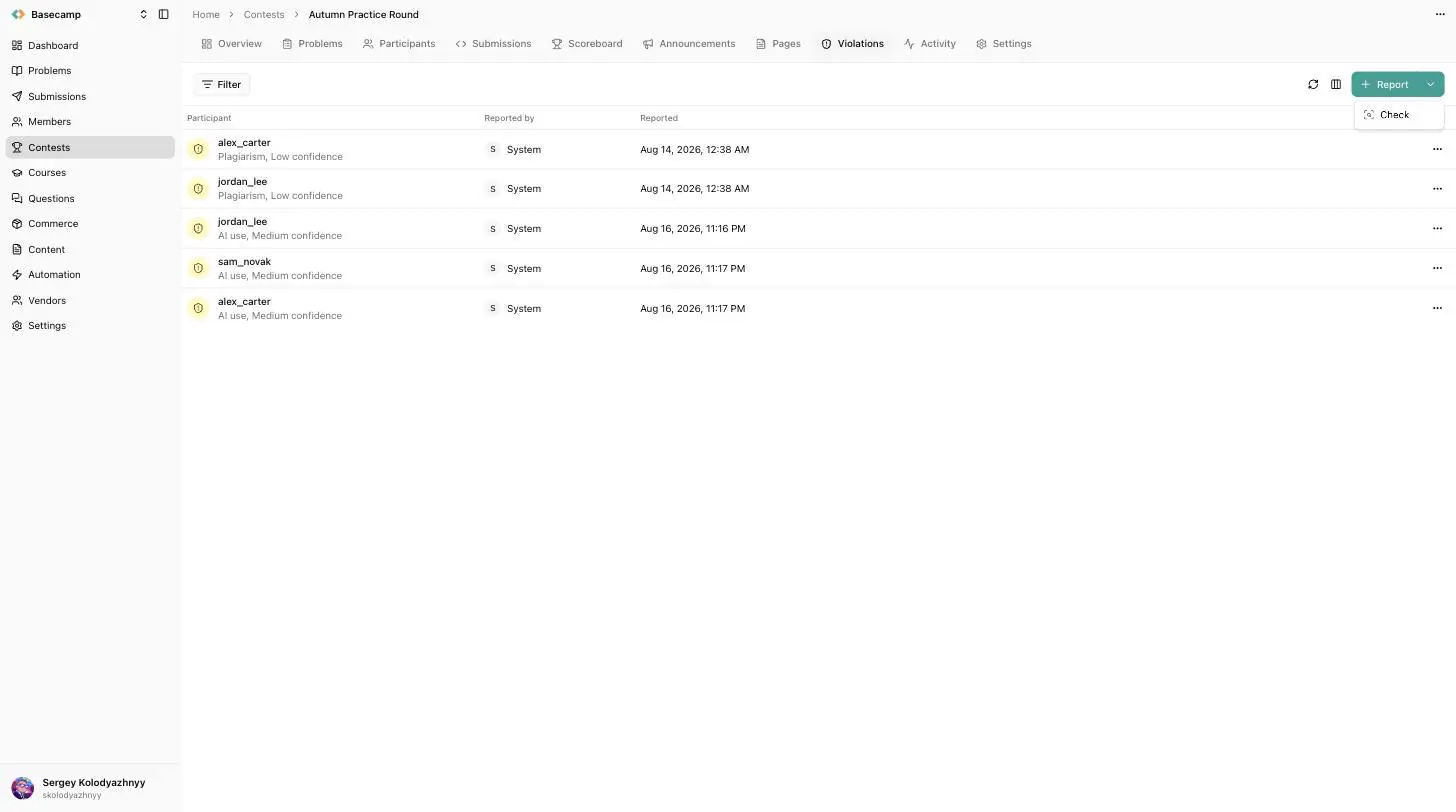
Fig 1. The Violations tab. Check sits in the menu beside Report.
The check runs in the background and usually finishes within a few seconds. The tab shows it running, and the violations appear in the list as soon as it is done.
The same Check action is also available from the contest's action menu and from the row menu in the contests list.
When to run the check
Run the check once the contest has ended. Participants can only be compared against each other once they have submitted, so a check on a round that is still running sees part of what a finished one would — and finding nothing at that point does not mean nothing happened. The console warns you when you start a check on a contest that has not finished yet.
You can run the check as many times as you like. A repeat run does not file the same violation twice and does not change the verdicts you have already given.
A finalized contest cannot be checked, so run the check and work through the results before you finalize the contest.
Reading the list
The list holds one row per participant per finding. Each row shows:
Field | What it is |
|---|---|
Participant | Who the violation is about. |
Type | Plagiarism, AI use, Behaviour, or Other. |
Confidence | High, Medium, or Low — how strong the finding is. |
Reported by | System for a violation the check filed, or the jury member who reported it. |
Reported | When it was filed. |
Type and confidence are shown together under the participant's name. The coloured circle at the start of the row is the violation's status: Pending, Confirmed, or Dismissed.
You can filter the list by participant, status, type, confidence, and by whether the violation was reported automatically. Filters are worth using before you start: the queue you narrow down is the queue you then work through.
Reviewing a violation
Click a row to open the case. It has three parts:
Summary — what was found, in plain language.
Related — the other participants named by the same finding. Copying involves at least two people and is filed against each of them, so a verdict on one is only half a decision; the other side is one click away.
Evidence — the material the finding rests on. For copying, that is the two programs side by side with the matching passages marked. For other findings it is the submissions involved and the participant's path through the contest.
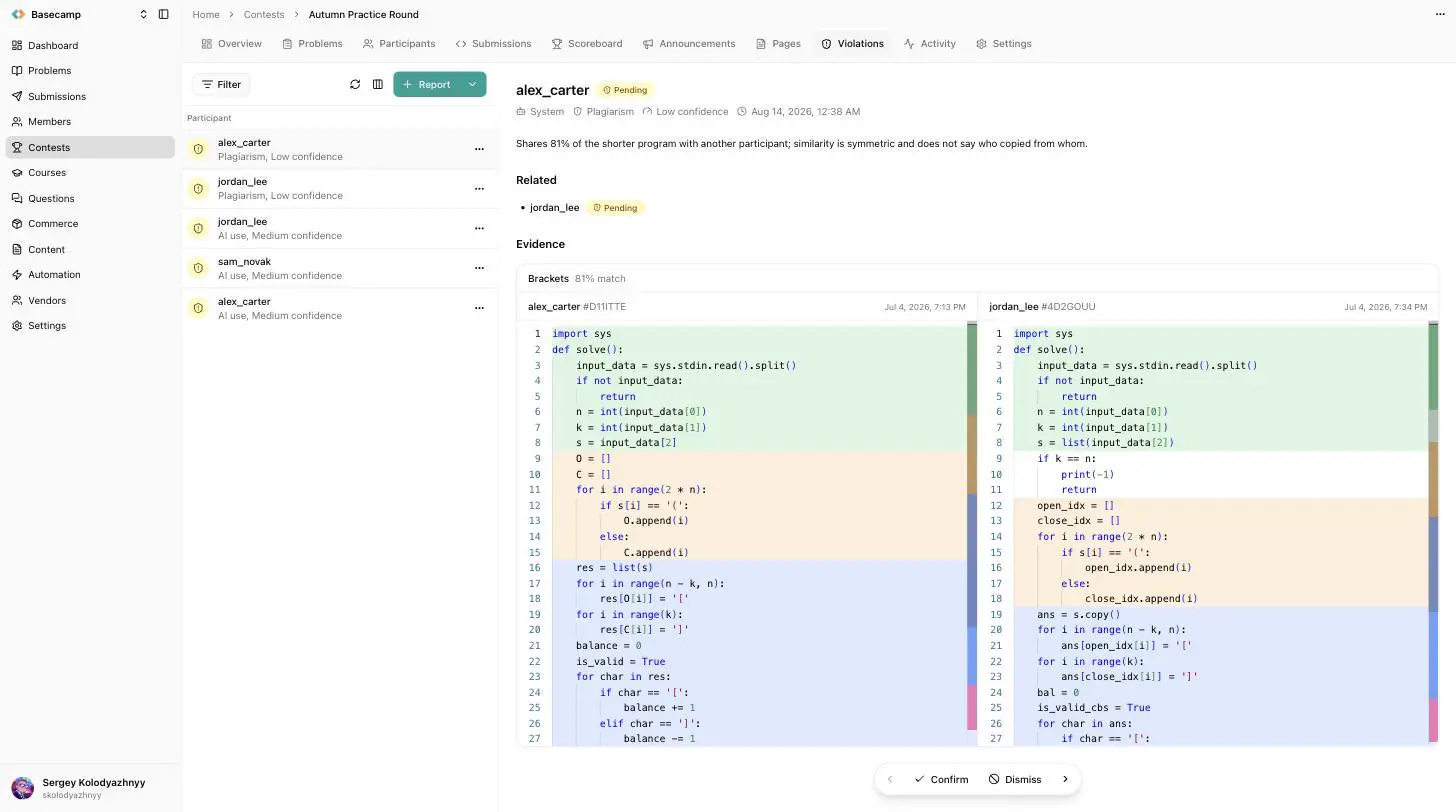
Fig 2. An open case, with the queue kept beside it. The two programs are shown side by side and the matching passages are marked.
Use the arrows at the bottom of the case to move to the previous or next violation without going back to the list, keeping any filter you set.
Confirming and dismissing
At the bottom of every case are Confirm and Dismiss.
Confirm marks the violation confirmed. It stays on the participant's record.
Dismiss marks it dismissed. It stays on the list, so there is a record of what was looked at as well as of what was upheld.
Both are reversible — press the same button again to put the violation back to Pending — and both decide only the case in front of you. Confirming one side of a match says nothing about the other participant; open the related case and decide it separately.
You can also confirm and dismiss straight from the row menu in the list, without opening the case. The same menu offers Delete, which removes the violation and the verdict on it for good. Dismissing is almost always the better choice, because it keeps the record.
Confirming a violation does not disqualify anyone. Disqualification is a separate action on the Participants tab, and it is yours to take once you have decided.
Reporting a violation yourself
Anything a jury finds by other means belongs on the same list, so that everything suspected in a contest is reviewed and recorded in one place.
Open the Violations tab and click Report.
Choose the Participant.
Choose the Type — Plagiarism, AI use, Behaviour, or Other.
Write a short Summary of what happened.
The violation is filed as Pending under your name and behaves exactly like one the check produced: it can be confirmed, dismissed, filtered, and deleted the same way.
Finding participants with violations
Once you have worked through the list, go to the Participants tab and switch on the Violations filter. That gives you every participant who still has a violation standing against them.
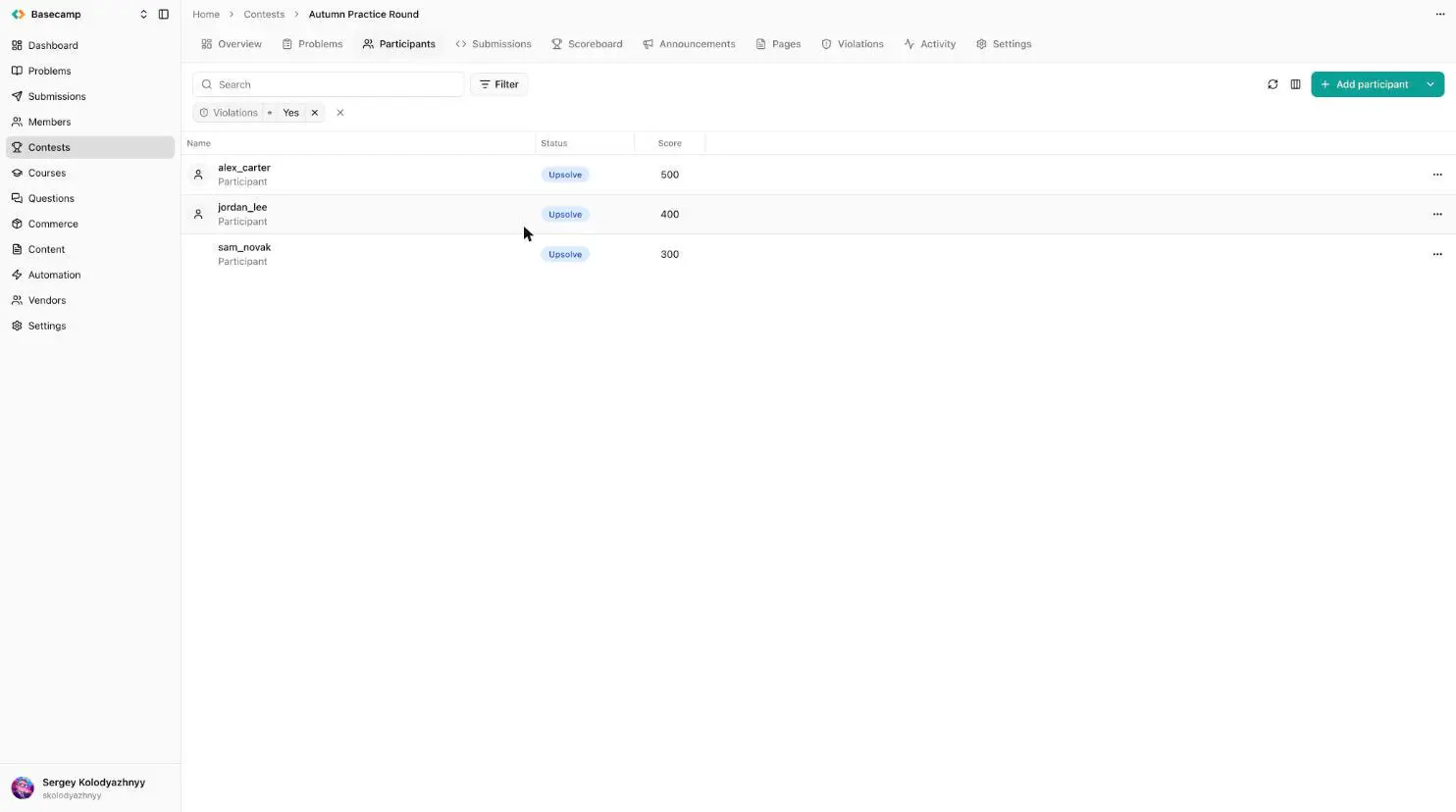
Fig 3. The Participants tab with the Violations filter switched on.
Dismissed violations do not count here, and the list updates as you decide: dismiss a participant's only violation and they drop out of it, confirm one and they stay. So if you review the whole queue before looking, what you are left with is the participants you have ruled against, plus anyone still pending.
 Stand with Ukraine